
What the button looks like
This is a WeGive Pay button. When a donor clicks it, the checkout window opens. You choose the colors, the amount, and the words on the button.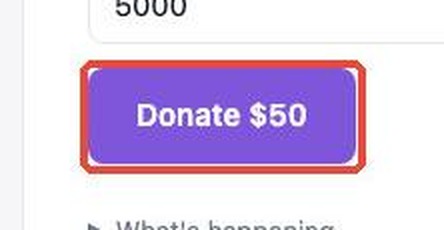
Which option is right for you?
WeGive Pay has two options.
This guide covers the Pay with WeGive button. If your developer wants to build a custom form, send them the Payframes guide.
Before you start
Make sure you have these four things:- WeGive Pay turned on for your organization. It is not on by default. Email [email protected] or your WeGive contact to ask for it.
- The right permission in WeGive. Your WeGive user needs developer API permission to create keys. An admin on your team can check this in Settings → Roles & Permissions.
- A way to edit your website. You can do this yourself, or you can send the code to the person who manages your site.
- Your website address. For example,
https://www.yourorg.org. If the button will be on more than one site, list them all.
Part 1: Set up your key
Step 1: Check that WeGive Pay is on
In your WeGive dashboard, go to Settings → Pay SDK Keys. If you see this page, WeGive Pay is on and you are ready to go. If you do not see it, WeGive Pay is not turned on yet. Contact [email protected].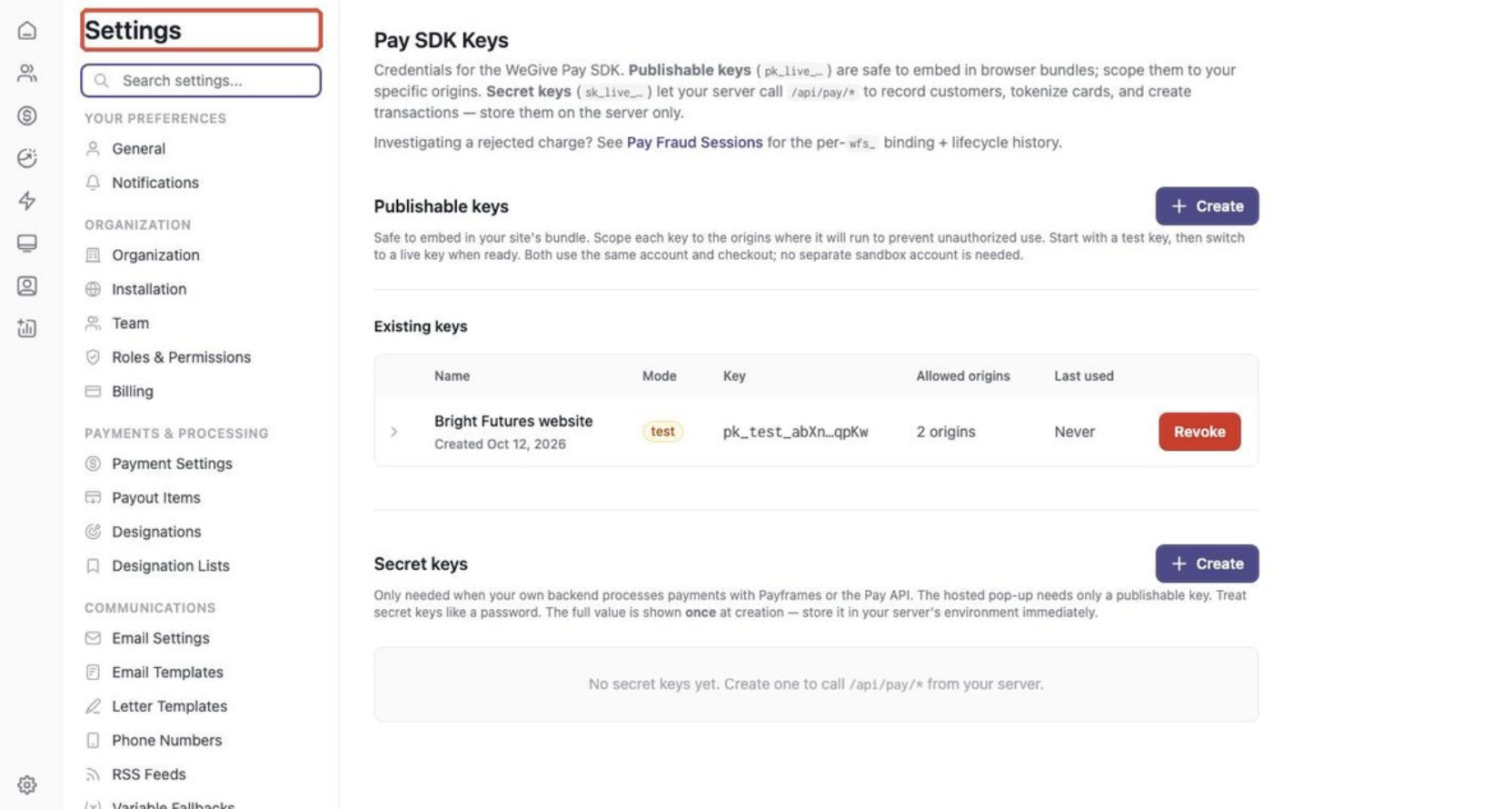 This page has two sections:
- Publishable keys. These are what you need for the button. They are safe to put on your website.
- Secret keys. You do not need these for the button. They are only for custom forms. Never put a secret key on your website.
Step 2: Create a test key
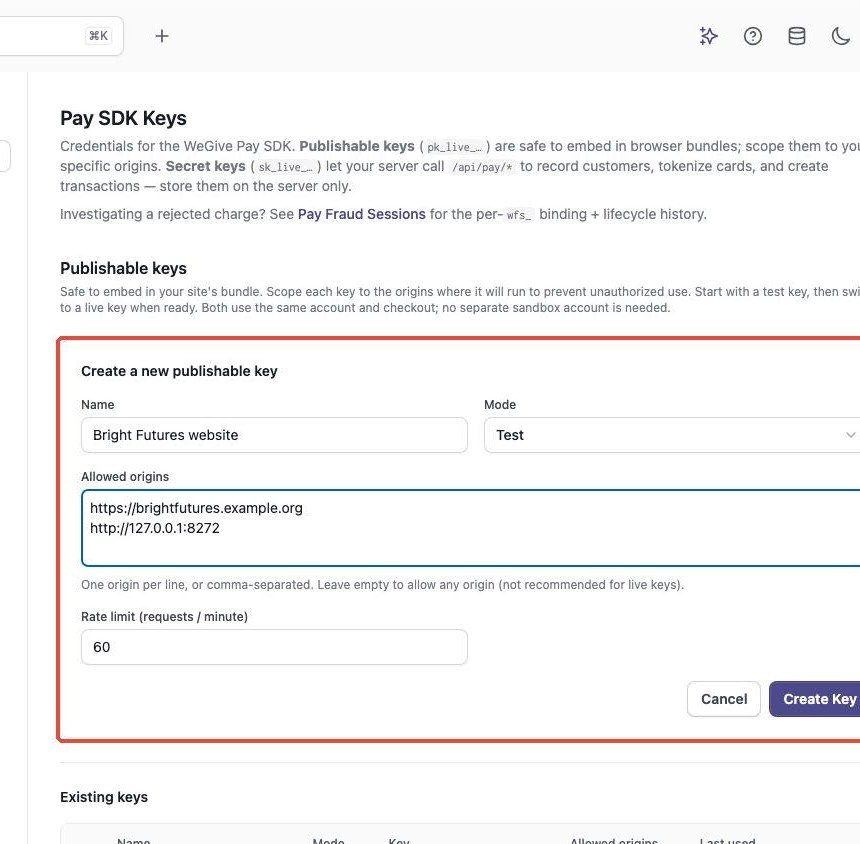
A key connects your website to your WeGive account. Start with a test key. Test keys only make practice donations, so no real money moves.- Under Publishable keys, click Create.
- Name: Give it a name you will recognize, like “Main website.”
- Mode: Choose Test.
- Allowed origins: Type the website address where the button will go. Put one address on each line. Include
https://at the start. - Rate limit: Leave this at the default.
- Click Create Key.
Step 3: Copy your key right away
After you click Create Key, a yellow box shows your full key. This is the only time you will see the full key. Click Copy and paste it somewhere safe, like a note. Then click Dismiss.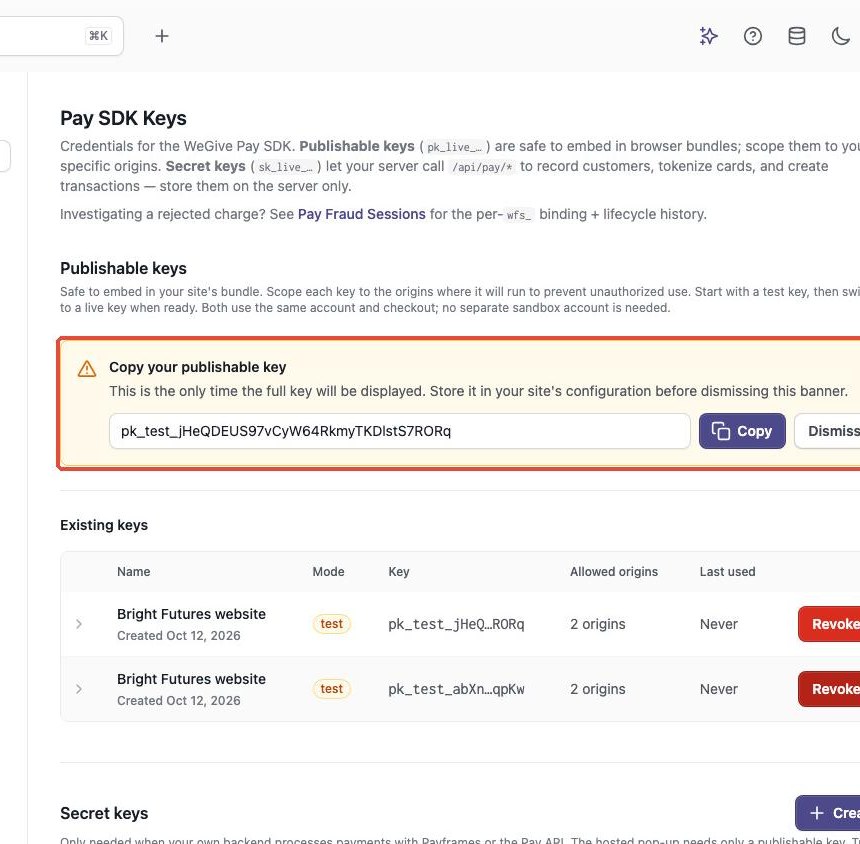
Need to change your website list later?
Click the arrow next to your key to open it. You can add a new address with Add origin, or remove one with the trash can. Click Save when you are done.Part 2: Design your checkout
Step 4: Open the Playground
Go to Settings → Pay SDK Playground. The left side has all your design choices. The right side shows the code. The code updates every time you change a setting.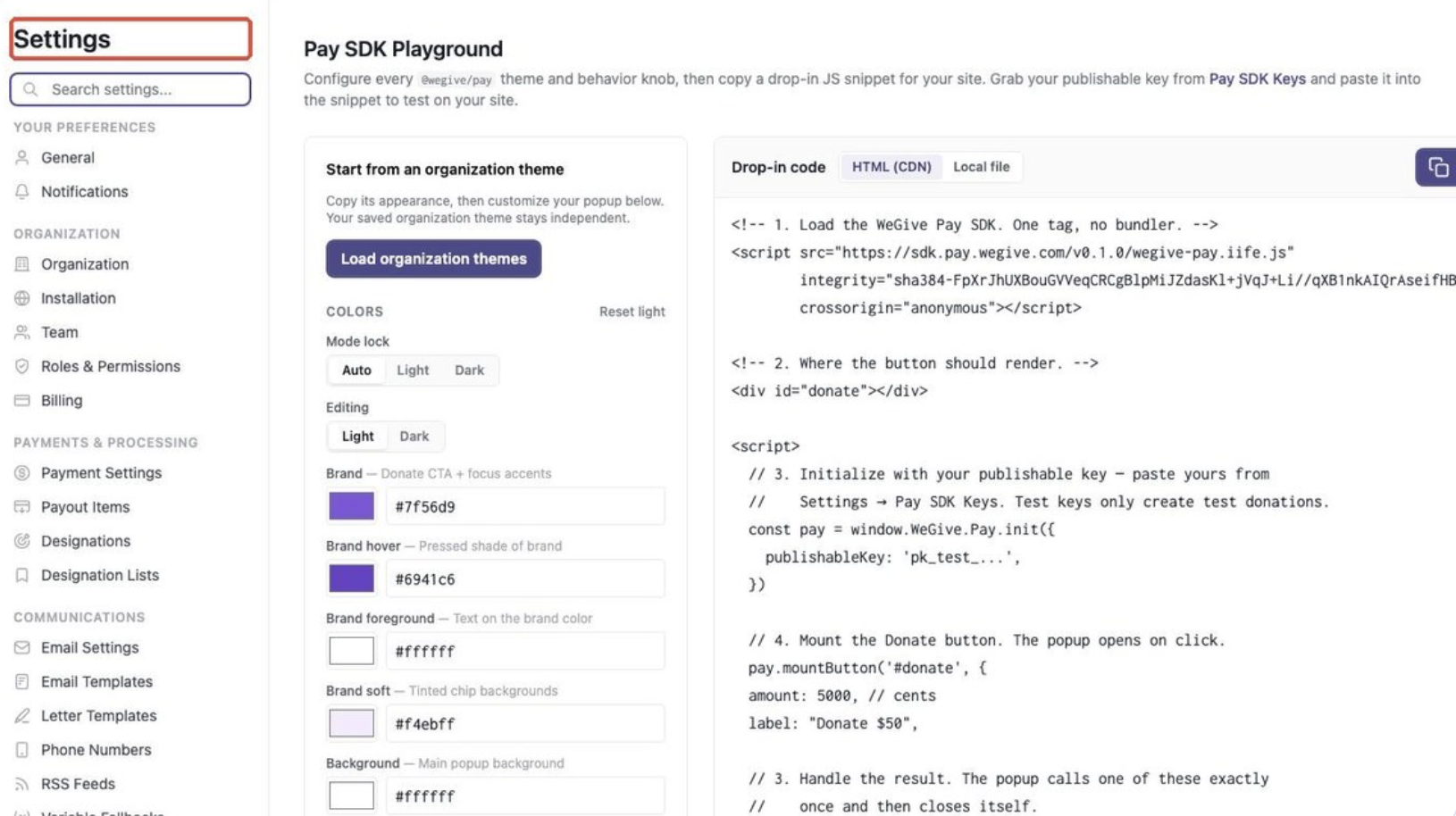 Work through the sections below from top to bottom. You can skip any section and keep the default.
Start with your brand
Click Load organization themes and pick your saved theme. This copies your colors into the checkout. You can still change anything after that. Your saved theme will not change.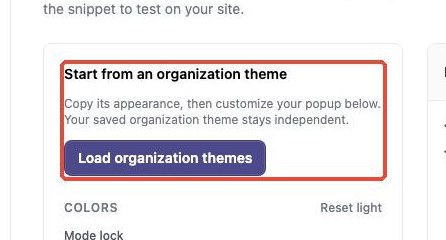
Colors
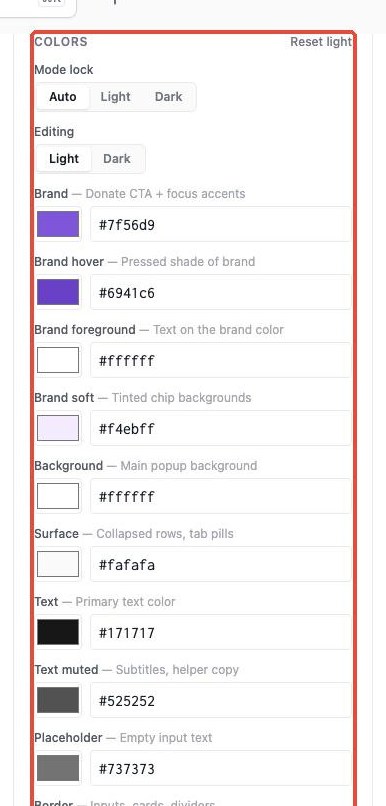
Click any color box to change it. Here is what the main ones do:- Brand: The color of your Donate button.
- Brand hover: The button color when a donor points at it.
- Brand foreground: The color of the words on your button.
- Background: The main color of the checkout window.
- Text: The color of the main words.
Shape and fonts
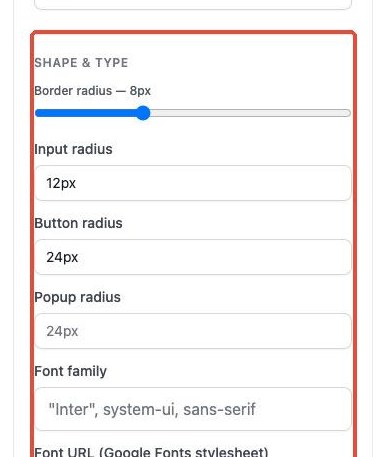
- Border radius: Slide this to make corners more round or more square.
- Input, button, and popup radius: Fine-tune the roundness of each part.
- Font family: The font name, like “Inter” or “Arial.”
- Font URL: If you use a Google Font, paste its link here.
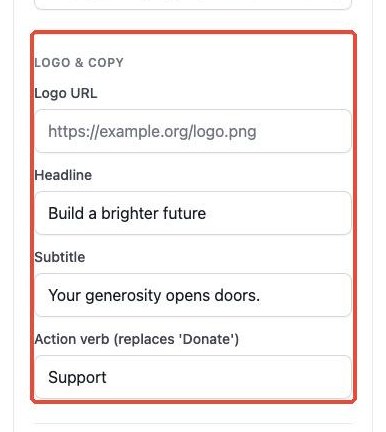
Logo and words
- Logo URL: A web link to your logo image.
- Headline: The big title donors see first.
- Subtitle: A short line under the headline.
- Action verb: The word on the button. “Donate” is the default. You could use “Give” or “Support.”
Language
Auto-detect from browser shows the checkout in the donor’s own language. Built-in languages are English, Spanish, French, German, Portuguese, Dutch, and Italian. Check Show donor language picker to let donors switch languages themselves. The String overrides box lets you change any single label. For example, you can change “Continue” to “Continue securely.” Most people can skip this.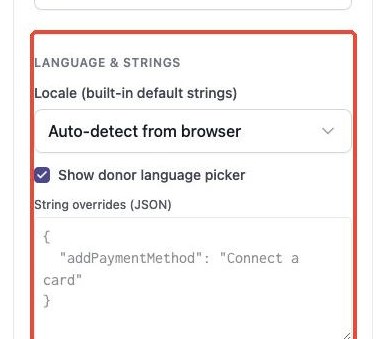
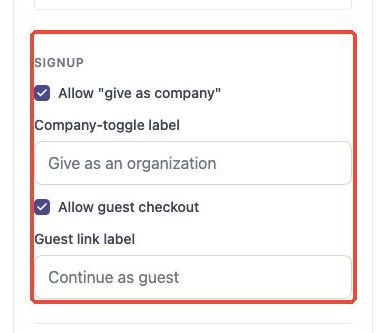
How donors sign up
- Allow “give as company”: Lets donors give on behalf of a business or group.
- Allow guest checkout: Lets donors give without making a WeGive account.
Payment methods
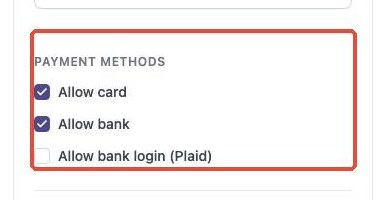
Pick which payment types donors can use:- Allow card: Credit and debit cards.
- Allow bank: Donors type in their bank account and routing number.
- Allow bank login (Plaid): Donors connect their bank by signing in to it.
Billing address
Choose Full to ask for a full address. Choose Name + Postal for a shorter form. A shorter form is faster for donors.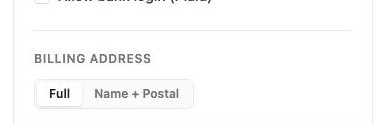
Gift type and amount
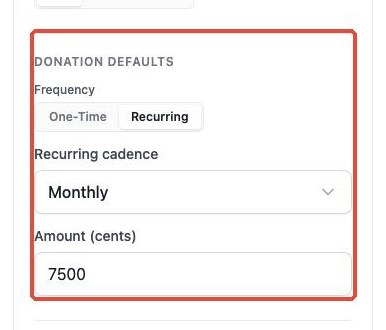
- Frequency: Choose One-Time or Recurring.
- Recurring cadence: If recurring, choose how often. Monthly is the most common.
- Amount (cents): Type the amount in cents. For example, type
7500for $75. Type2500for $25.
Prefill (optional)
If you already know the donor’s email, you can fill it in here. The donor can then skip the email step. Most people leave this blank.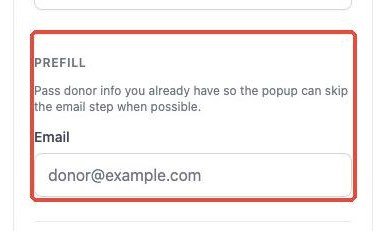
Track where gifts come from (optional)
If your page link has tracking tags (often called UTM tags), WeGive Pay picks them up on its own. You only need to fill in this section if you want to set them yourself. For example, you could set utm_source to “newsletter” for a button you link to from an email.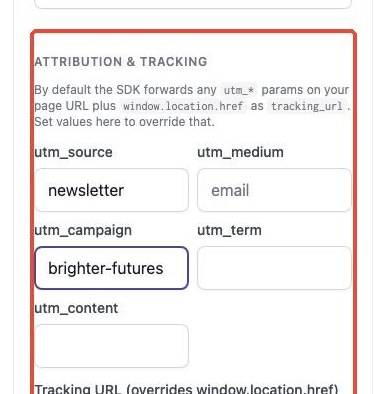
Organization brand ID (only if you have more than one brand)
Some organizations run more than one brand or ministry in WeGive. If that is you, enter the brand ID here so gifts are credited to the right brand. If you only have one brand, leave this blank. Not sure? Ask your WeGive contact.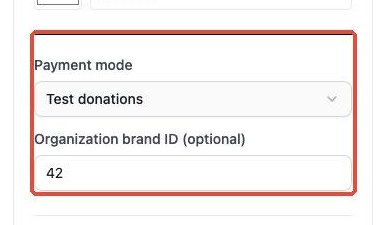
Part 3: Add the button to your website
Step 5: Copy the code
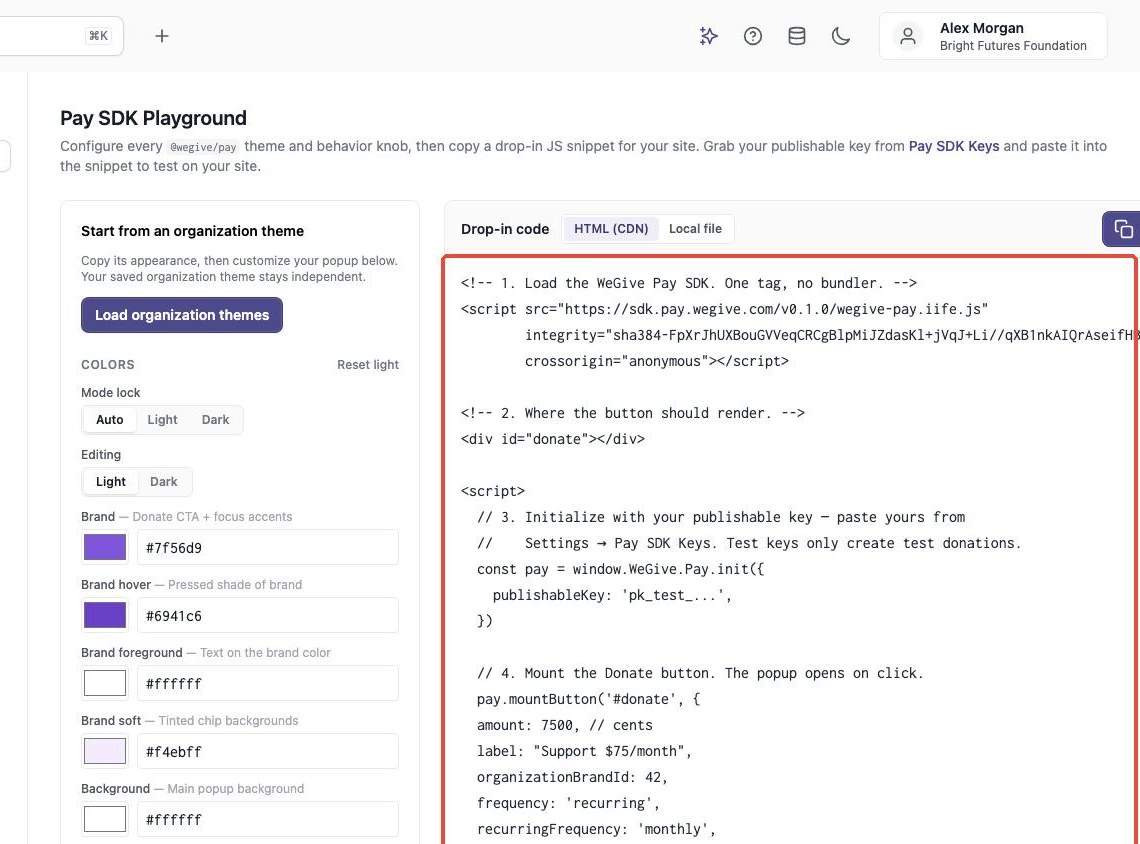
- At the top of the code box, make sure HTML (CDN) is selected.
- Find the line that says
publishableKey: 'pk_test_...'. Replacepk_test_...with the key you copied in Step 3. Keep the quote marks. - Click the copy button in the top right corner of the code box.
Step 6: Paste the code on your website
Go to the page where you want the button. Paste the code where you want the button to show up. Most website builders have a block called HTML, Custom HTML, Code, or Embed. Add that block and paste the code inside it. Then save or publish your page. If someone else manages your website, send them the code. Tell them which page the button should go on.Step 7: Test your button
Open your web page and click the button. Walk through the checkout like a donor would. Because you used a test key, this is a practice gift. No real money moves. Check that:- The button shows up where you expected.
- The checkout window opens.
- Your colors, logo, and words look right.
- The amount is correct.
Step 8: Go live
When everything looks good:- Go back to Settings → Pay SDK Keys.
- Create a new publishable key. This time, choose Live for the mode.
- Fill in your real website addresses under Allowed origins.
- Copy the new key.
- In the code on your website, replace your test key with your live key.
- Save your page.
Good to know: Test and live keys use the same WeGive account and the same checkout. The key is the only thing that changes.
Part 4: What your donors will see
A returning donor
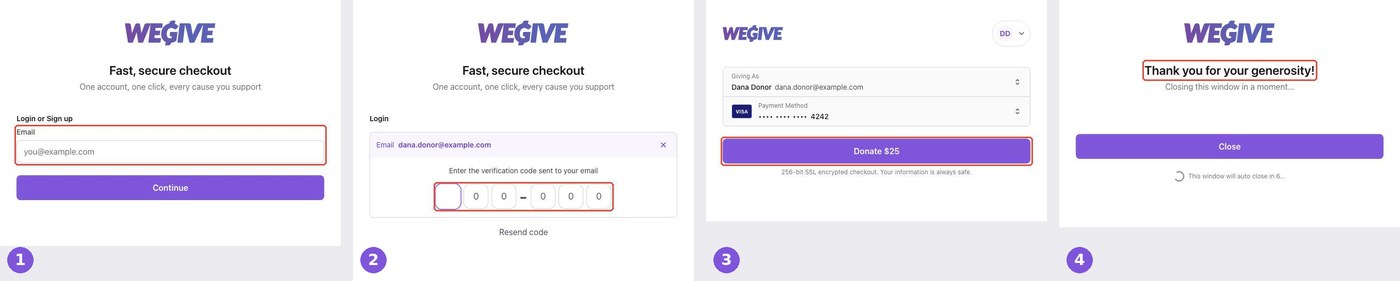
Donors who have given through WeGive before can give in just a few clicks.- They enter their email.
- They type in a code sent to their email.
- They check the amount and payment method, then click Donate.
- They see a thank you message.
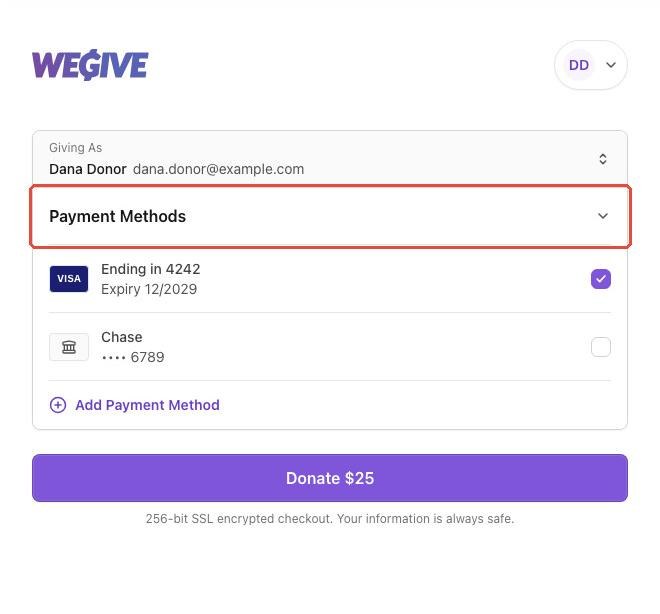
 If a donor has more than one saved card or bank account, they can pick which one to use. They can also add a new one.
A new donor
New donors set up their account the first time they give.- They enter their name, email, and phone number (phone is optional).
- They choose Card and type in their card details.
- They add their billing address and click Save Card.
- Their new card is ready. They click Donate.
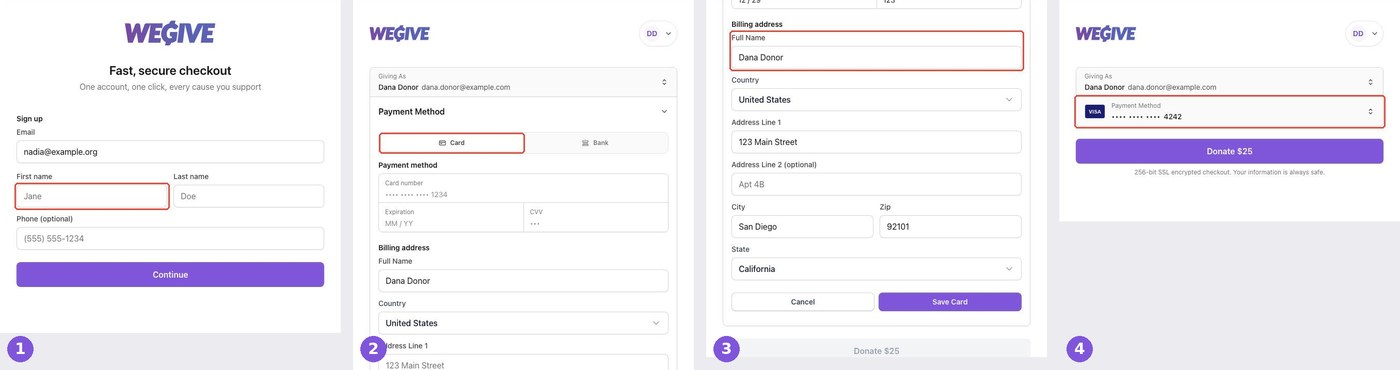 Next time, they will be a returning donor.
A guest donor
If you turned on guest checkout, donors can give without an account.- They click Continue as guest.
- They enter their name.
- They click Donate.
- They see a thank you message.
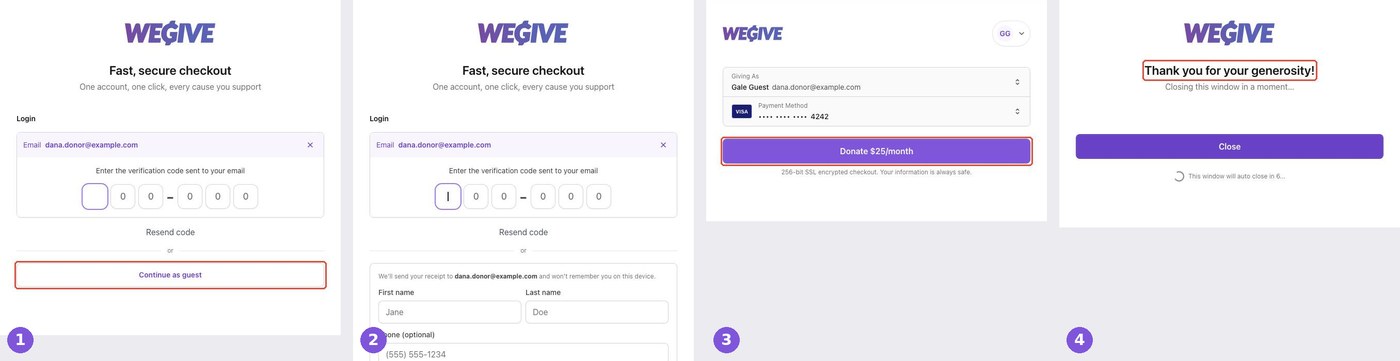
Giving as an organization
If you turned on “give as company,” new donors see a Give as an organization checkbox. When they check it, they can type in the name of their business or group.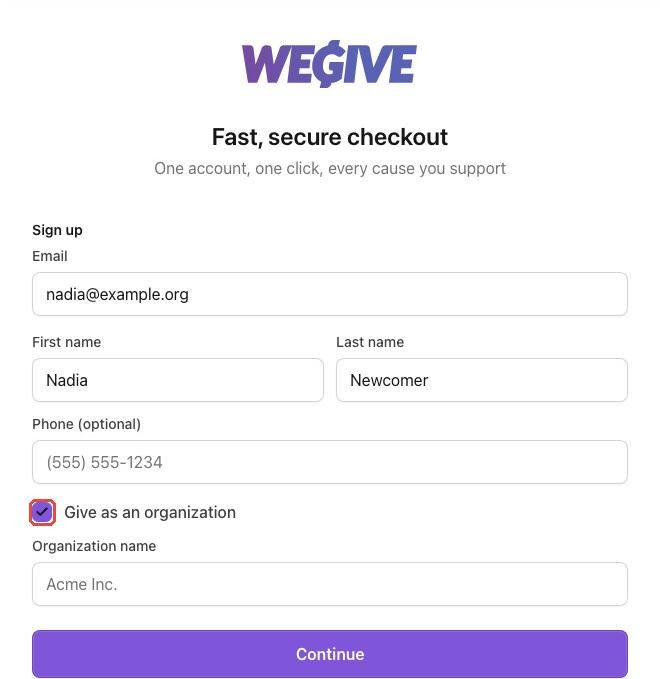
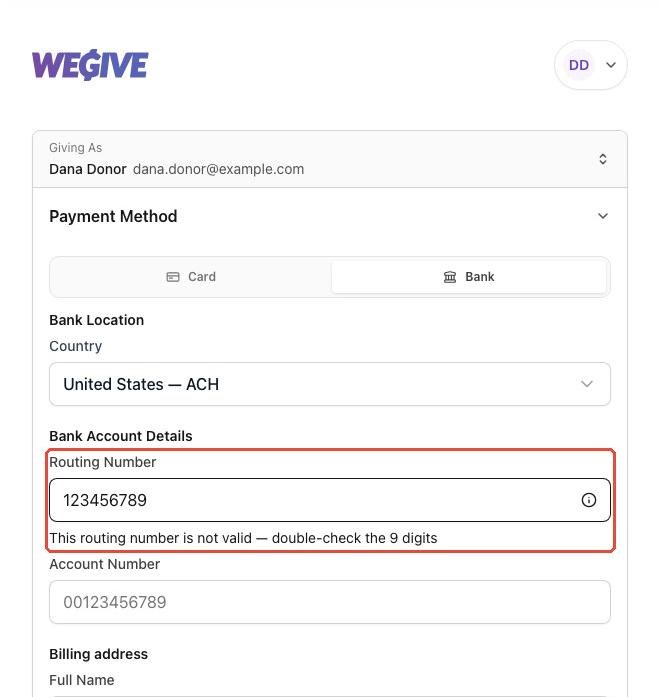
Paying with a bank account
If you turned on bank payments, donors can choose Bank instead of Card.- They enter their routing number and account number.
- They add their billing address and check the box to approve the bank payment.
- Their bank account is ready. They click Donate.
- They see a thank you message.
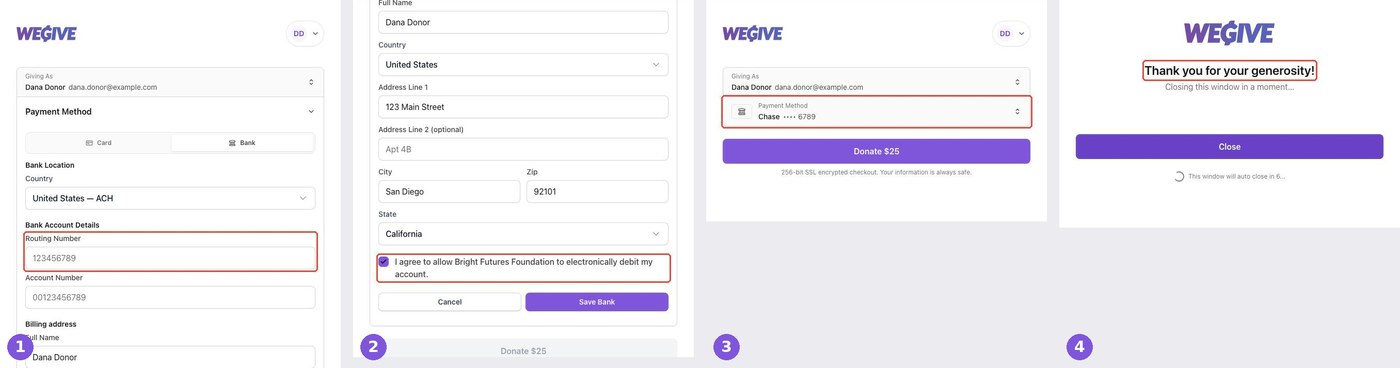
Recurring gifts
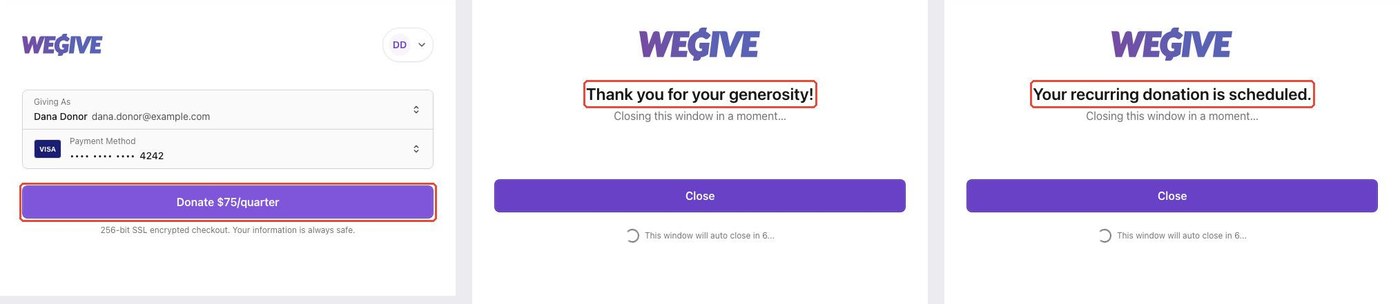
For recurring buttons, the button shows how often the gift repeats. For example, “Donate $75/quarter.”- If the first gift happens today, the donor sees “Thank you for your generosity!”
- If the first gift is set for a future date, the donor sees “Your recurring donation is scheduled.” No money moves today.
Your brand, your look
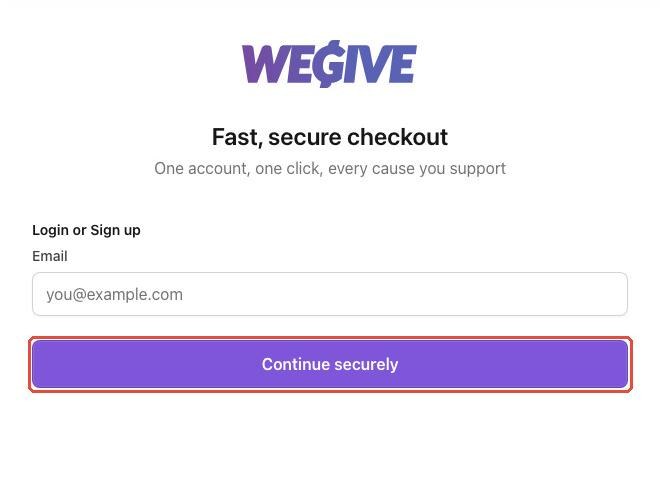
Your headline, colors, and button style all show up in the checkout. The left side shows custom colors, a custom headline, and a round button. The right side shows dark mode.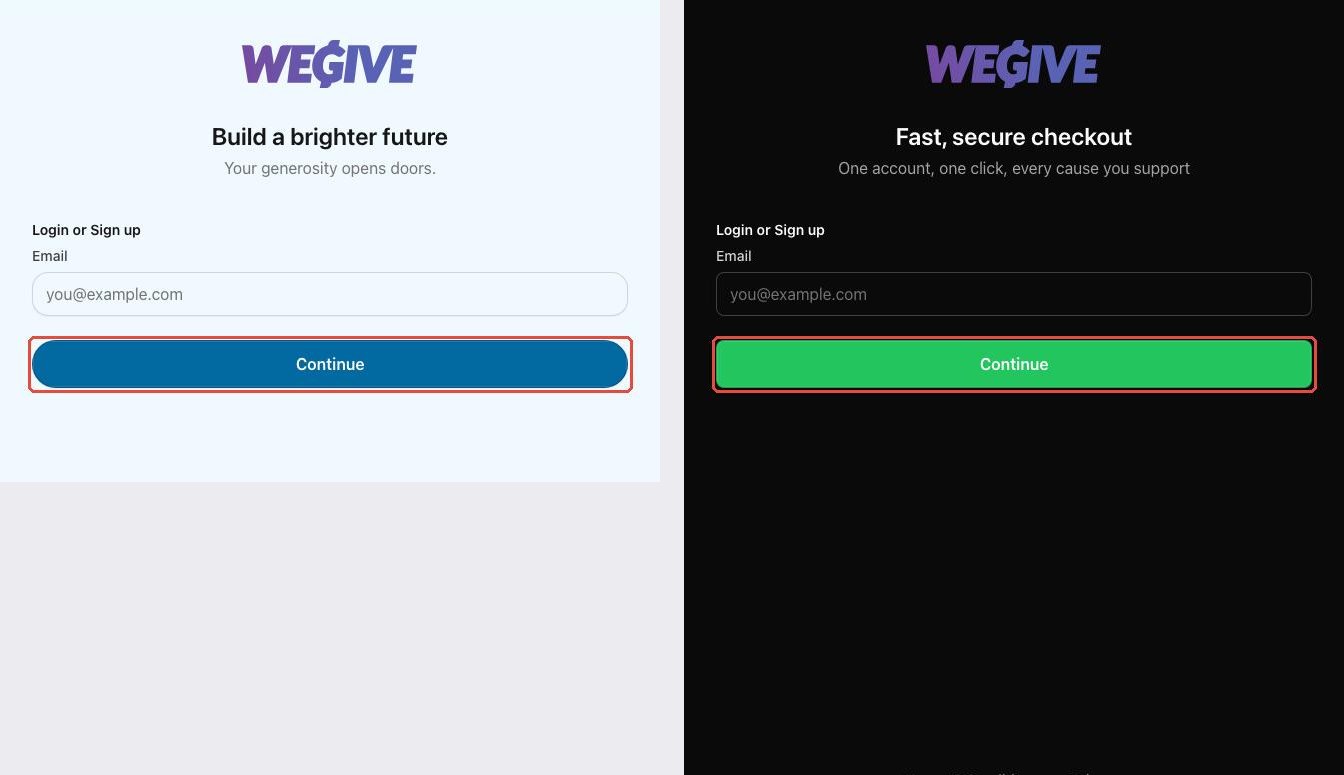 If you used String overrides, donors see your custom words. Here, “Continue” was changed to “Continue securely.”
Other languages
Here is the same checkout in each built-in language.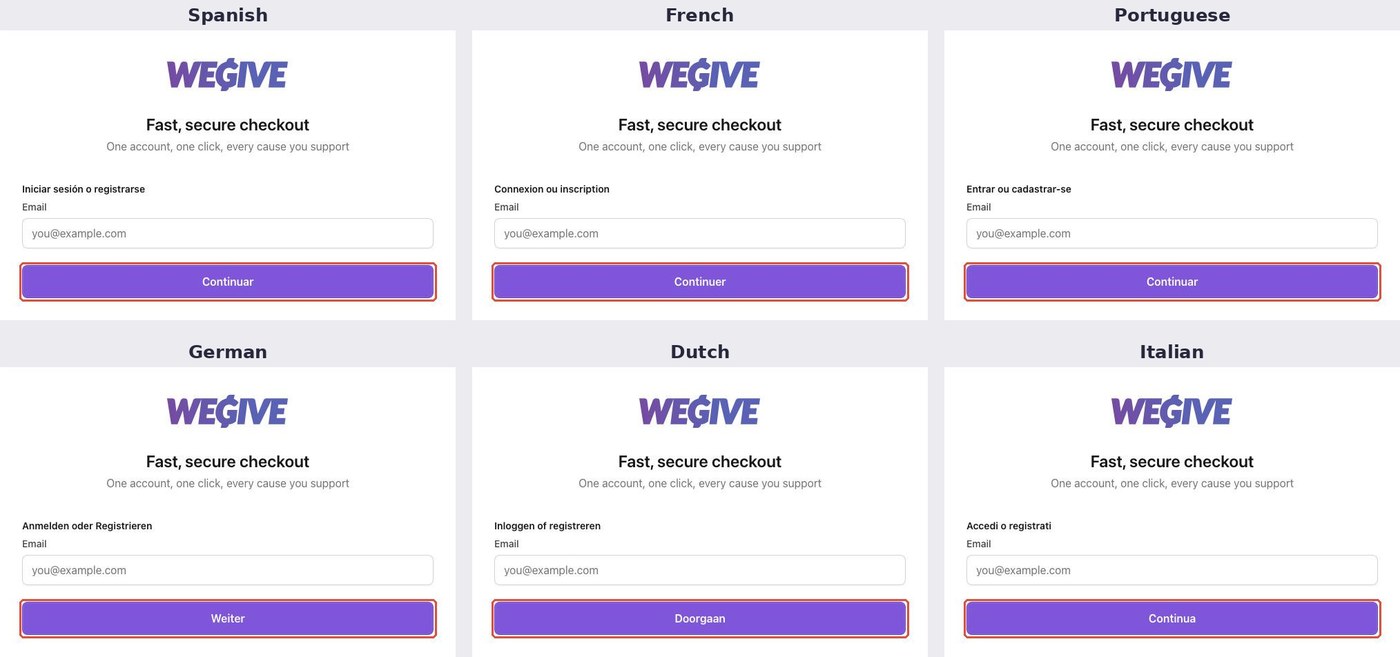
On a phone
The checkout fits on phone screens. Donors can give the same way they would on a computer.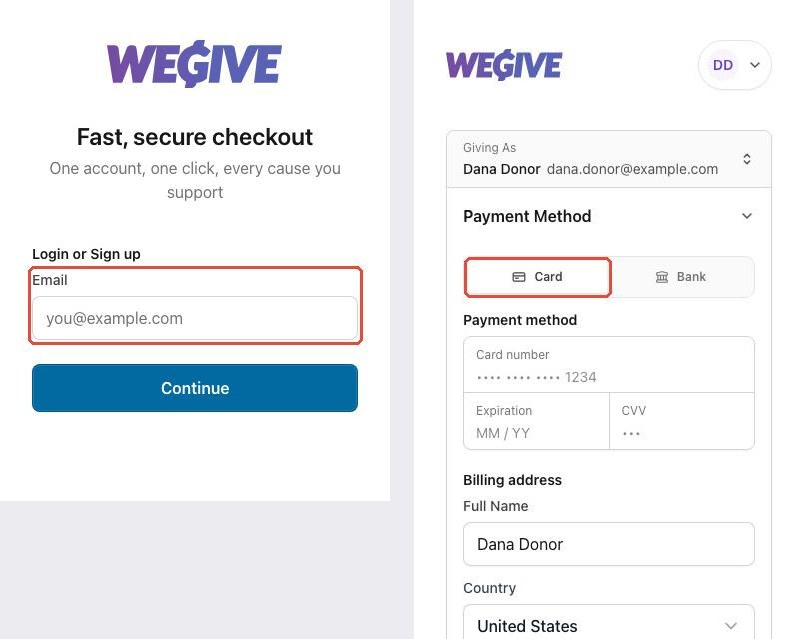
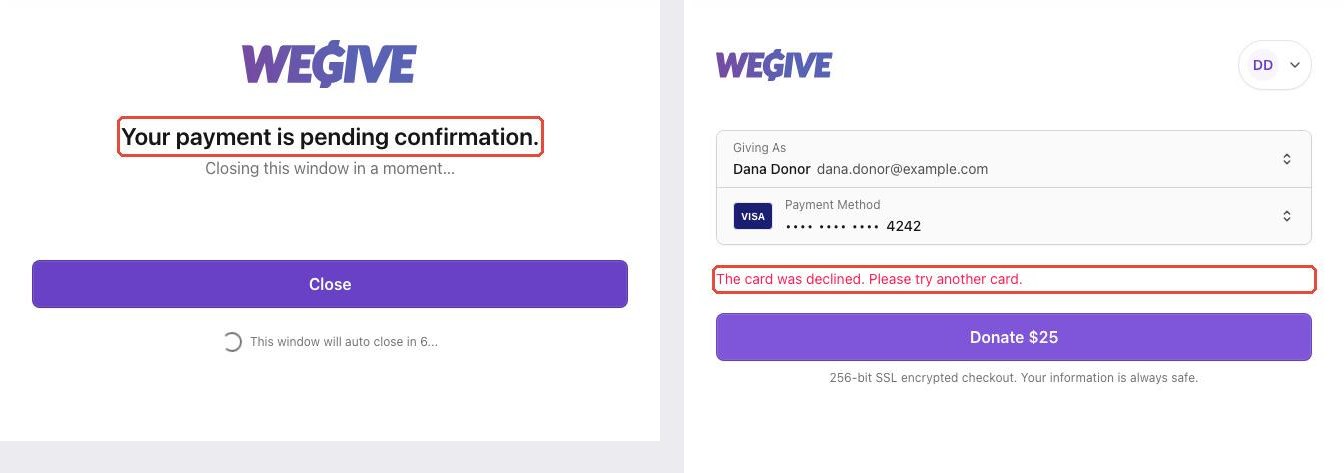
Other messages donors might see
Not every gift ends with “Thank you.” Here is what the other messages mean.- “Your payment is pending confirmation.” The gift was sent but is not final yet. This is common with bank payments.
- “The card was declined.” The donor can try another card.
Common questions
Do I need a developer? Not for the button. You only need to copy and paste code. You need a developer only if you want a fully custom form. Can donors use Apple Pay, Google Pay, or PayPal? Not right now. WeGive Pay takes cards and bank accounts. Is my donors’ payment information safe? Yes. Donors enter their payment details inside the WeGive checkout window. Your website does not collect or store card numbers. If I remove the button, will monthly gifts stop? No. Recurring gifts keep running even if you take the button off your site. To stop a recurring gift, manage it in WeGive. Does changing my colors change where the money goes? No. Colors, logo, and words only change how the checkout looks. Can I use the button on more than one website? Yes. Add each website address to your key under Allowed origins. Or create a separate key for each site. Can I have more than one button on the same page? Yes. Set up each button in the Playground and copy its code. For example, one button for a one-time gift and one for a monthly gift. The button does not show up on my page. What should I check? Make sure you pasted all of the code, not just part of it. Make sure your key is pasted between the quote marks. If you are using a live key, make sure your website address is in the Allowed origins list. The amount on my button is wrong. Why? The amount is set in cents. If you typed75, the button will say $0.75. Type 7500 for $75.