Migrating from PayPal? This same semi-automated flow applies regardless of which platform or processor your organization is migrating from — WeGive doesn’t have a distinct process or mechanism specifically for PayPal. If your donors were giving via PayPal recurring subscriptions, their payment tokens can’t be carried over (PayPal doesn’t expose a transferable token the way a card-on-file processor does), so they’ll see the same “add a payment method” prompt described below. The donor-facing steps, timeline, and FAQ are identical no matter the source platform.
- Log into your donor portal — Go to your organization’s giving portal (your org will provide the link) and sign in with your email and password. When you log in, you should see a notification letting you know that your recurring plan needs a payment method. If you don’t see it, that’s okay — just head to the next step.
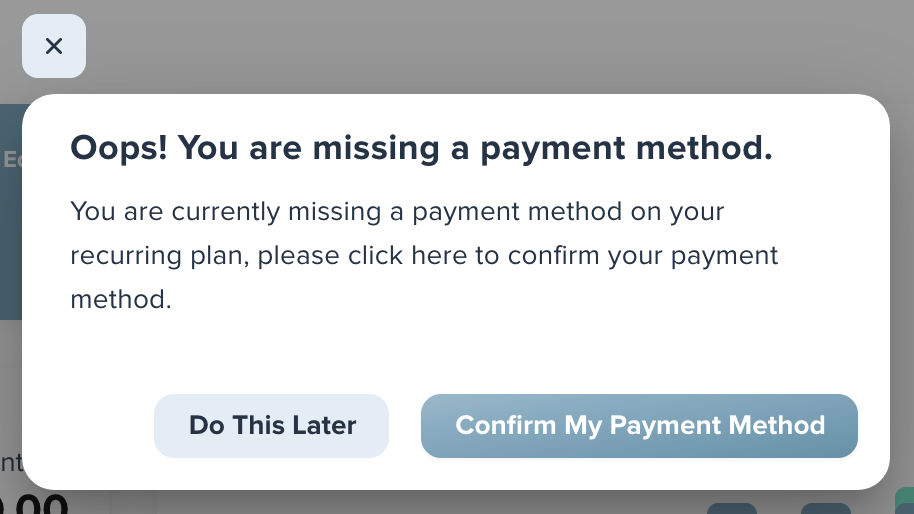
- Go to Recurring Giving — Find the Recurring Giving section on your portal dashboard.
- Click “Edit” — In the Recurring Giving box, click Edit, then select the recurring plan you’d like to activate.
- Click “Edit” again — This opens the plan details where you can add your payment information.
- Add your payment method — Click on the Card or Bank option under Payment Method, then select “Add New.” Enter either your card details (card number, name, CVV, postal code, expiry) or bank details (routing number and account number).
- Review and Confirm — Click “Review” to verify everything looks correct, then “Confirm” to save.
- Their recurring plan will begin processing automatically on the next scheduled charge date once a payment method is added. It will not retroactively charge for any missed payments.
- Their giving history, schedule, and amount have already been carried over — they just need to provide a payment method to resume automatic processing.
- If they have any trouble, they should reach out to your organization’s support team for help.
Example Email for Clients to Send to Recurring Donors: Subject: Action Needed: Update Your Recurring Gift Hi [First Name], We’ve recently upgraded our giving platform to better serve you, and your recurring gift of [amount]/[frequency] has already been carried over — thank you for your continued generosity! To keep your recurring gift active, we just need you to log in and add a payment method. Your gift details (amount, schedule, and history) are all saved and ready to go. Here’s how:
- Log in to your donor portal at [Portal URL]
- Go to the Recurring Giving section
- Click “Edit” and select your recurring plan
- Click “Edit” again to open your plan details
- Under Payment Method, click Card or Bank, then select “Add New”
- Enter your payment details and click “Review,” then “Confirm”
Donor Facing Instructions
How to Activate Your Recurring Gift We’ve recently upgraded our giving platform to make managing your generosity easier than ever. Your recurring gift details — including your amount, schedule, and giving history — have already been transferred. To keep your gift active, you just need to log in and add a payment method. It only takes a minute. Step 1: Log In to Your Donor Portal Visit your organization’s giving portal and sign in with your email and password. If this is your first time logging in, you may need to create a password using the email associated with your donor account. Step 2: Look for the Payment Method Notification When you log in, you may see a popup letting you know your recurring gift needs a payment method. If you don’t see it, no worries — just follow the steps below. Step 3: Go to Recurring Giving From your dashboard, find the Recurring Giving section. You’ll see your existing recurring gift listed with its amount and schedule. Step 4: Open Your Plan for Editing Click “Edit” in the Recurring Giving box, then select your recurring plan. Click “Edit” one more time to open your plan de tails. Step 5: Add Your Payment Method Under Payment Method, click “Card” or “Bank,” then select “Add New.” Enter your details:- Card: card number, name on card, CVV, postal code, and expiration date
- Bank account: routing number and account number