Overview
Reporting lets you answer your own questions about your data directly in WeGive, without exporting a spreadsheet every time. You can build a query (a saved question, like “How much did we raise each month this year?”), choose how to display the answer, and save it so you or your team can run it again anytime. You can then combine saved queries into a dashboard for a single view of the numbers you check most. With Reporting you can:- Build queries on your transactions, supporters, recurring plans, campaigns, designations and other admin data
- Filter, summarize and group your data, for example total giving by month or by payment method
- Display results as a table, number, line chart, bar chart, area chart or pie chart
- Save queries privately or share them with everyone in your organization
- Combine saved queries into dashboards
- Start from ready-made Giving Overview and Recurring Collections templates
- Download results as a CSV, export the underlying records, or save any report or dashboard as a PDF
- Use Build with AI to describe the report you want and have the settings filled in for you
Where to find it: In the left navigation, open Reporting. You’ll see Queries and Dashboards.
Start with a ready-made dashboard
You don’t have to build reports from scratch. WeGive includes two default dashboards that create a full set of reports for you in one click. Giving overview (6 reports): your total collected and payment count, monthly collections, recurring and one time collections by month, and giving by payment method. Recurring collections (7 reports): everything about your recurring donors. It shows total collected, payment count, how many plans paid, average payment, monthly collections, paying plans by month, and payment methods. To set one up:- Go to Reporting > Dashboards and choose Start with a dashboard.
- Pick Giving overview or Recurring collections.
- Choose a Date range (the default is the last 365 days) and a Report time zone (the default is your organization’s time zone).
- Choose who can see the dashboard and its reports.
- Click Create dashboard.
Good to know:
• The date range rolls forward each time a report runs, so “last 365 days” always means the last 365 days from today.
• Months with no payments show as zero on the charts.
• Recurring collections only counts payments linked to a recurring plan. “Paying plans” counts plans that made a payment in that period, not every active plan.
• These dashboards measure money collected, not net revenue, monthly recurring revenue or payouts to your bank.
Key terms
The Queries page
Go to Reporting > Queries to see every query you have access to. This includes your private queries and any queries shared with your organization. From this page you can:- Search for a query by name
- Filter the list
- See each query’s visibility, data source, visualization and when it was last updated
- Click any row to open that query
- Click the + button in the top right to create a new query
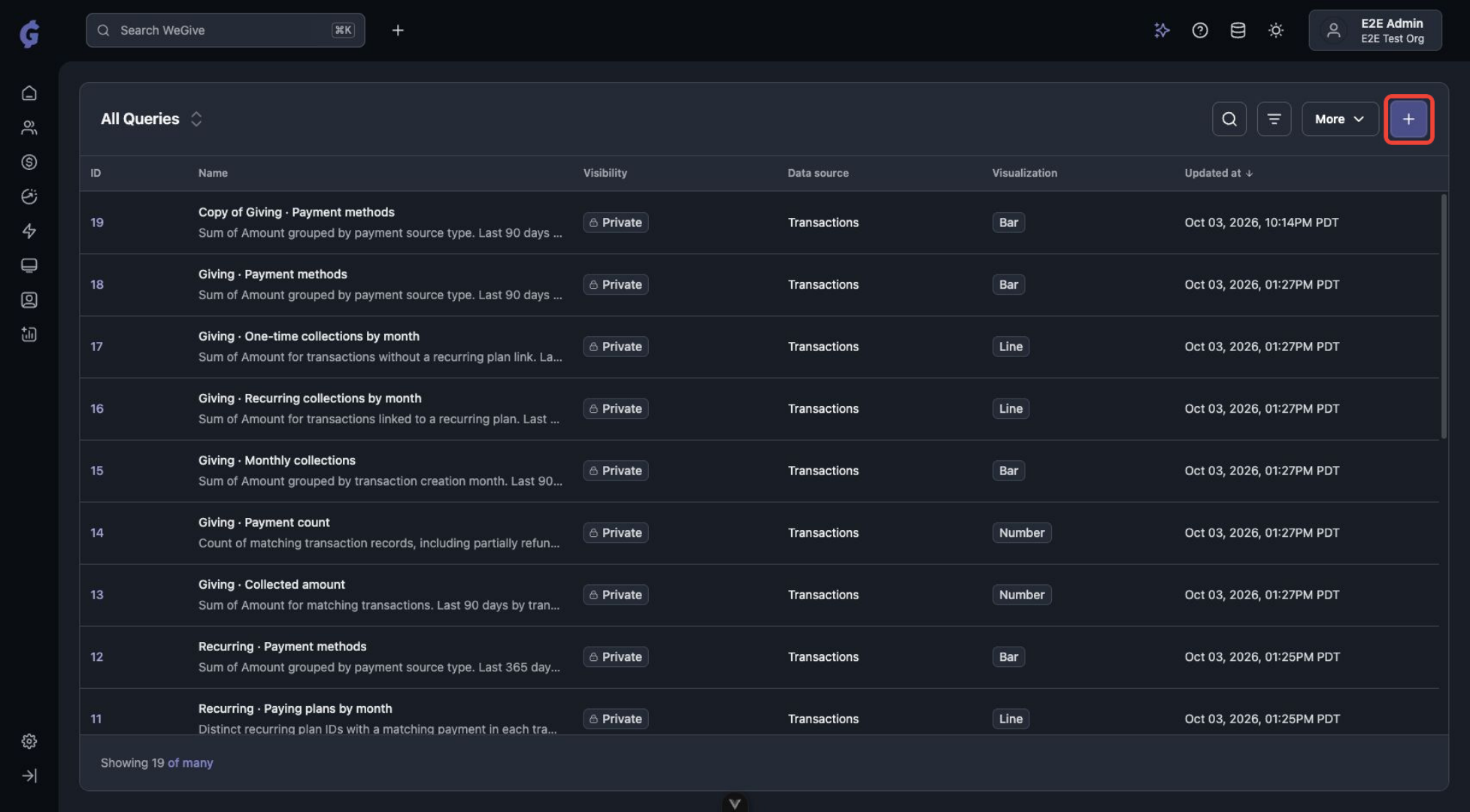 The Queries page lists your saved queries. Click + to create a new one.
Build a query
When you create a new query, the Query builder opens. Work through it from top to bottom.Step 1: Name your query and choose who can see it
In the Query details panel on the right:- Query name: Give it a clear name, like “Monthly giving 2026.”
- Query description: Describe what the query shows. Your teammates will thank you.
- Visibility: Choose Only me to keep it private, or share it with your organization so all admin users can see it.
Step 2: Choose your data
Under Choose your data, pick the dataset you want to report on. Options include Transactions, Supporters, Recurring plans, Campaigns, Designations and more. Type in the search box to find a dataset quickly.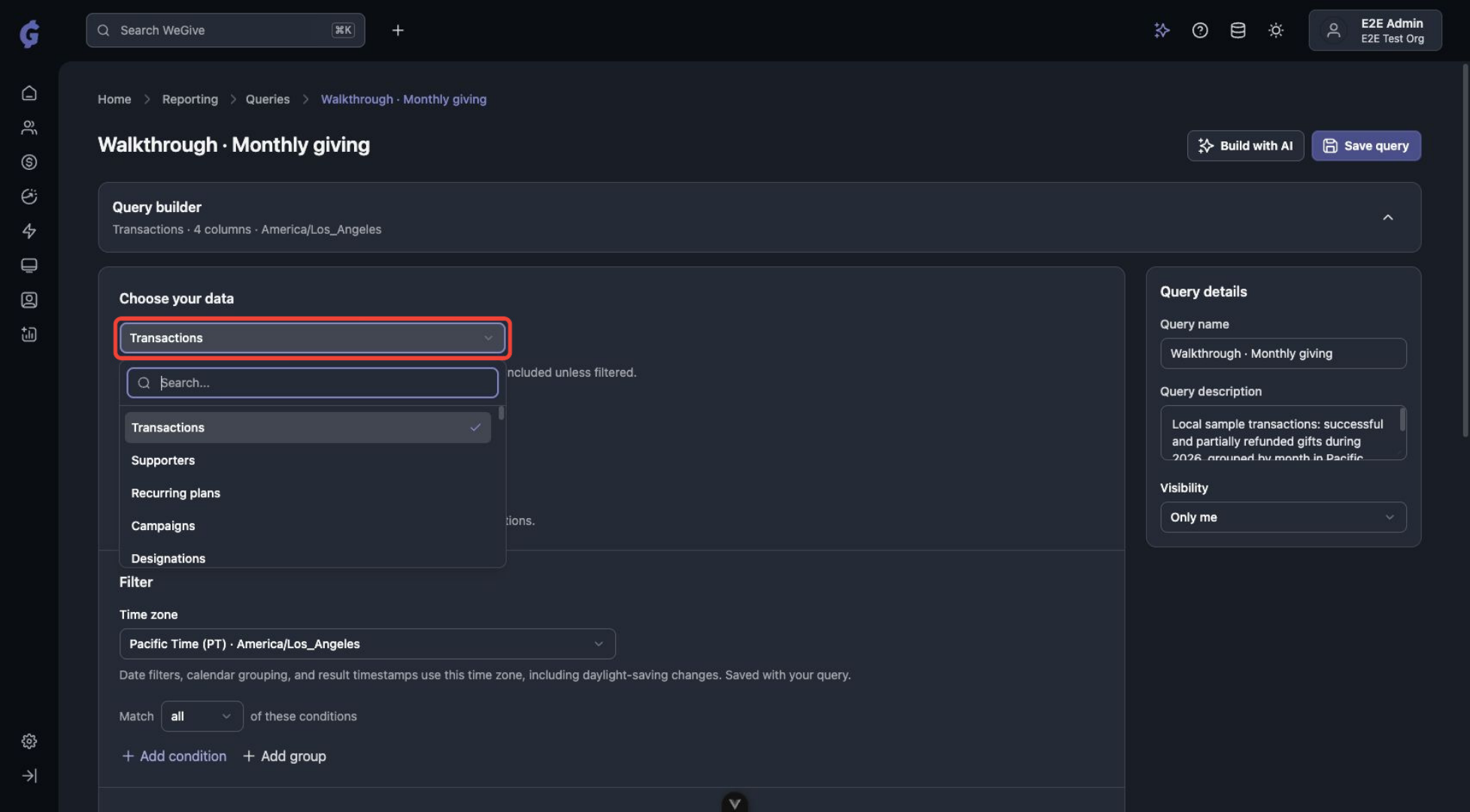 Choose the dataset for your query.
For Transactions, three switches control which records are included. All three are off by default:
Choose the dataset for your query.
For Transactions, three switches control which records are included. All three are off by default:
- Include deleted records: Records that were archived or deleted
- Include hidden transactions: Transactions marked as hidden
- Include non-tax-deductible transactions: Service revenue and other non-tax-deductible transactions
Note: Transactions include every payment status unless you filter by status. If you only want money that came in, add a Status filter (see Step 3).
Step 3: Set your time zone and filters
Time zone: Choose the time zone for this query. It controls date filters, monthly or weekly grouping, and the timestamps in your results, and it accounts for daylight saving time. Your organization’s time zone is the default, and you can change it for any individual query. The time zone is saved with the query. Filters: Add conditions to narrow your results.- Click Add condition to add a filter, such as Created At between 2026-01-01 and 2026-12-31.
- Use Match all when every condition must be true, or Match any when only one needs to be true.
- Click Add group to nest conditions. This lets you combine “all” and “any” logic.
- Set Match to all.
- Add the condition Created At between 2026-01-01, 2026-12-31.
- Click Add group and set the group to Match any.
- In the group, add Status is Successful and Status is Partially Refunded.
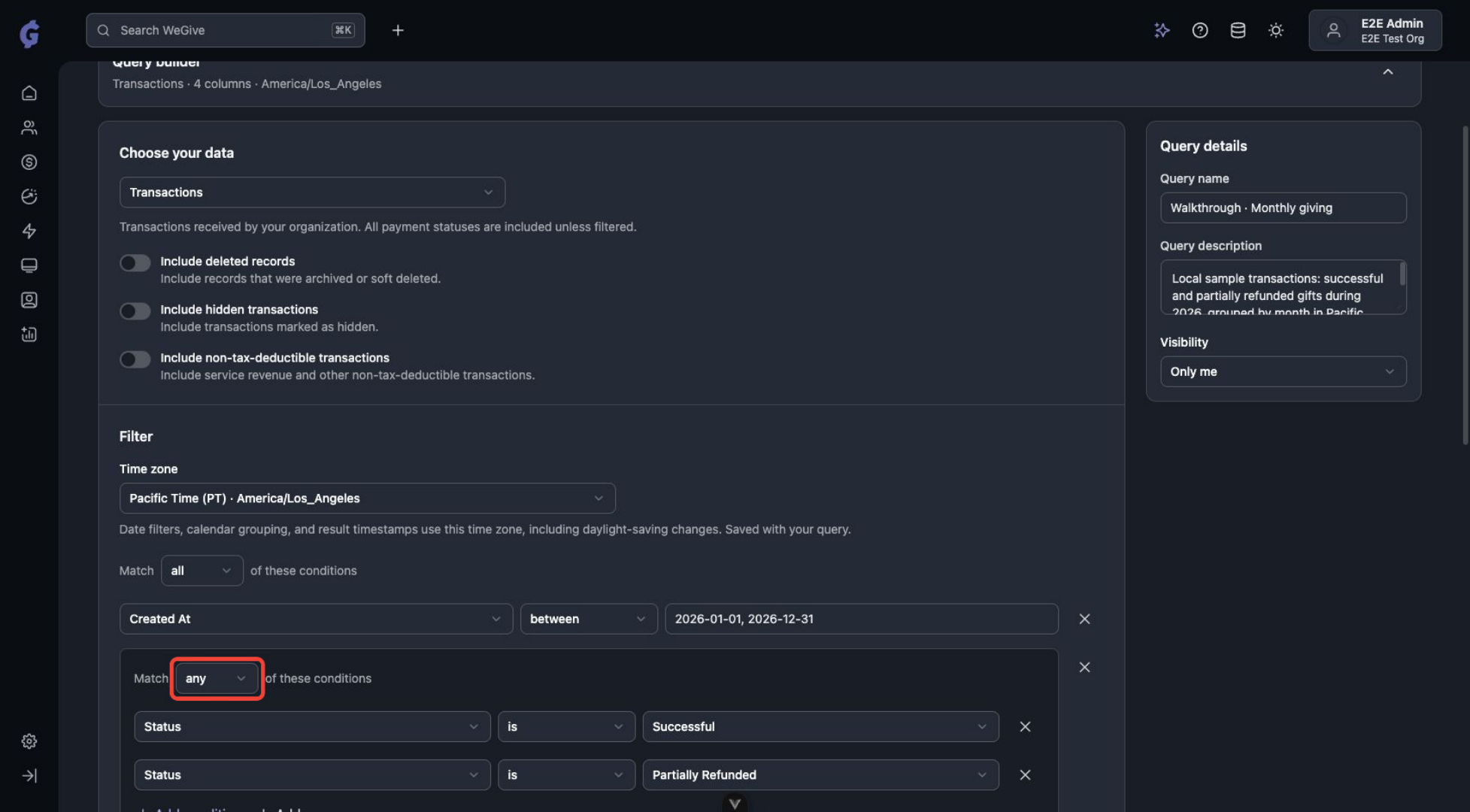 The deleted, hidden and non-tax-deductible switches, plus a filter group that matches any of two statuses.
Step 4: Summarize (optional)
Under Summarize, choose how to calculate your results:
You can add more than one calculation to the same query, for example total amount, number of gifts and average gift side by side.
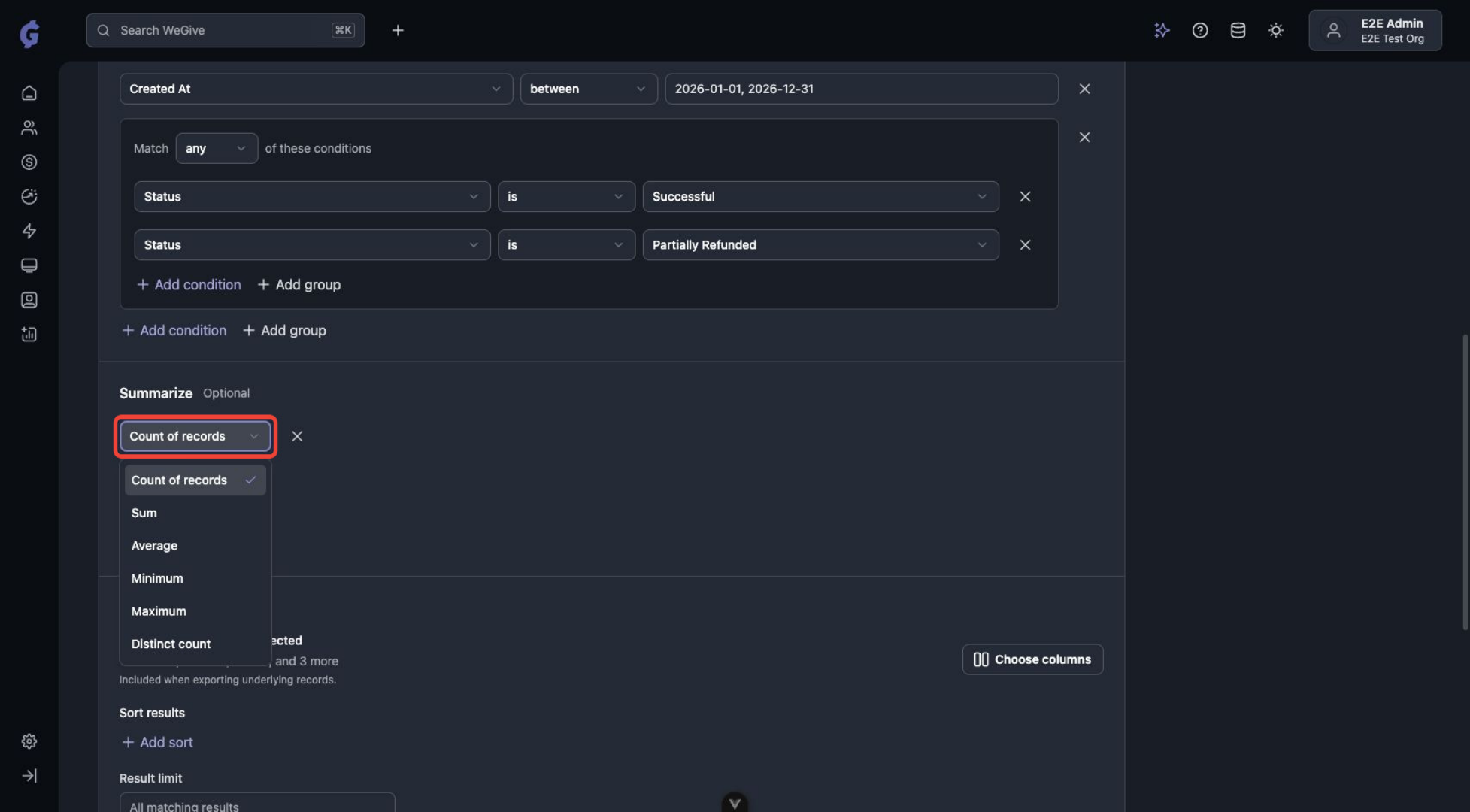 Choose a calculation under Summarize.
Then use Group by to break out the results. For example, group by Created At and choose Month to see totals for each month, or group by Payment Method to compare card and bank giving.
Choose a calculation under Summarize.
Then use Group by to break out the results. For example, group by Created At and choose Month to see totals for each month, or group by Payment Method to compare card and bank giving.
Tip: Leave Summarize empty to get a list of individual records instead of totals. See Browsing individual records below.
Step 5: Choose your columns
Under Result settings, click Choose columns to pick which fields to include when you export the underlying records. You can also add fields from related records. For example, a Transactions query can include the Campaign name, Designation or Recurring plan fields. Use the search box to find a column quickly, or click Selected to review what you’ve chosen. Click Apply columns when you’re done.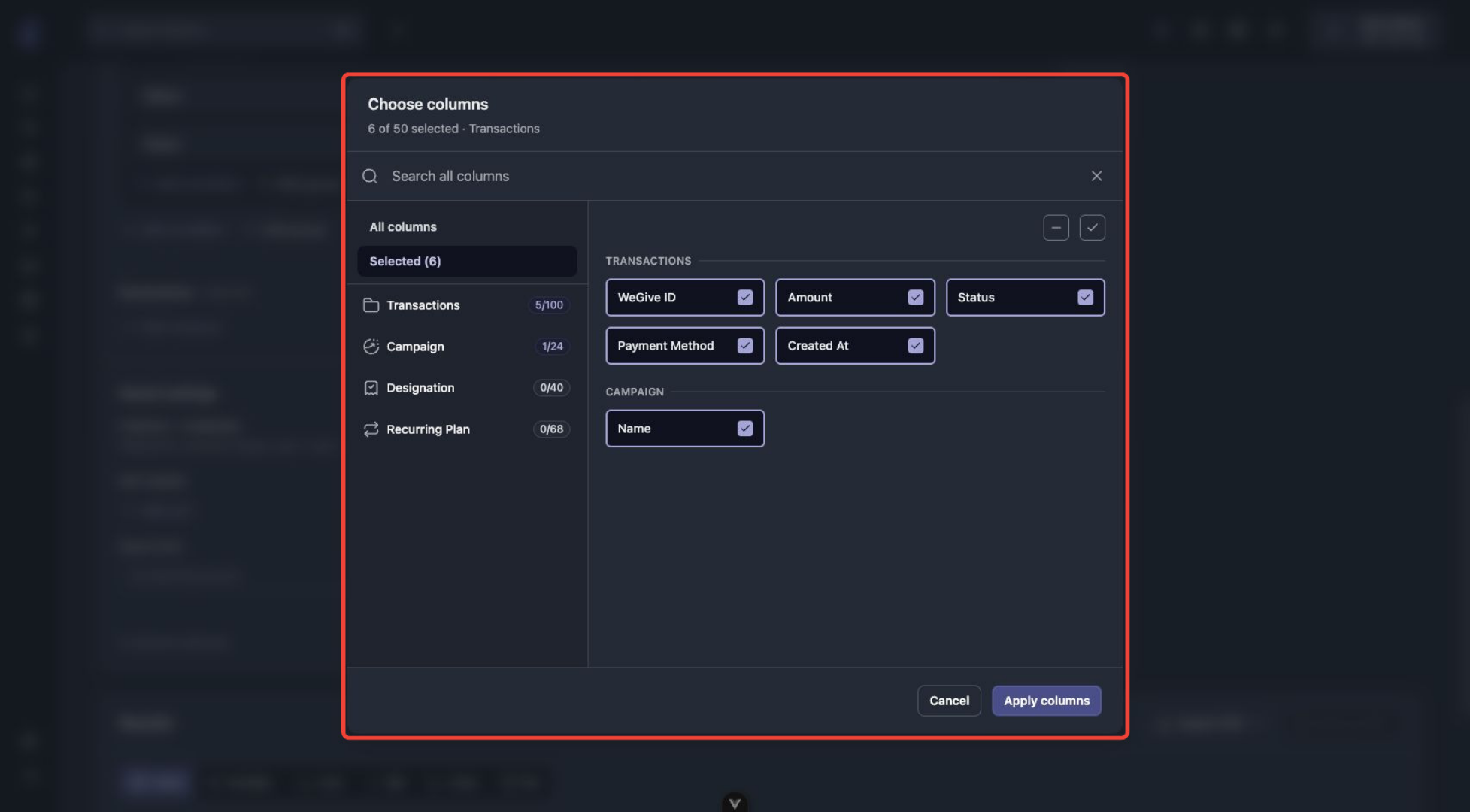 Pick columns from the dataset and its related records.
Step 6: Sort and limit your results
Still in Result settings:- Sort results: Click Add sort, then choose a field and Ascending or Descending. For a monthly trend, sort by Created At, ascending.
- Result limit: Set the maximum number of rows to return. Leave it as All matching results to return everything.
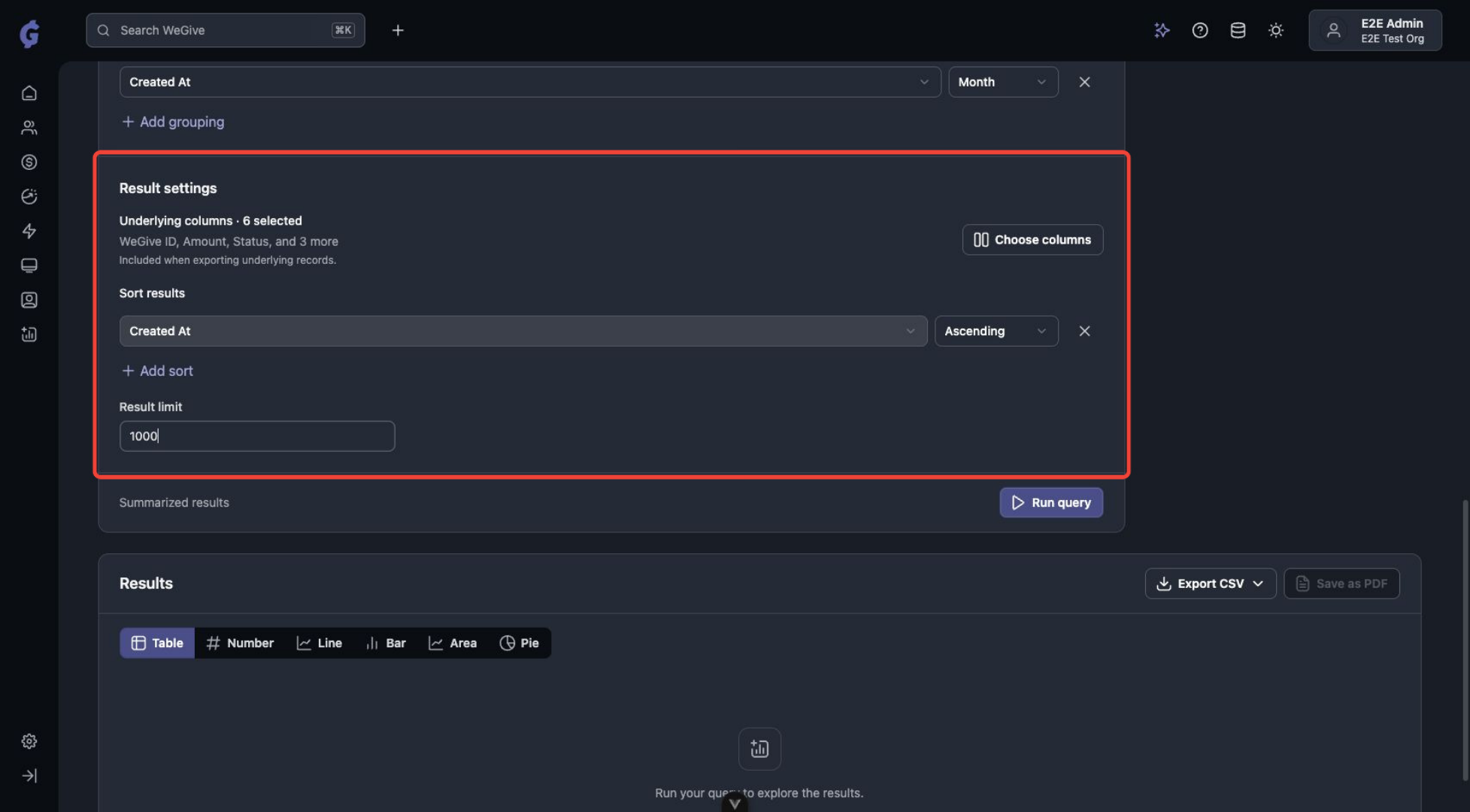 Set the sort order and result limit, then click Run query.
Step 7: Run and save
- Click Run query to see your results. Queries run in the background, so you can leave the page and come back later.
- Click Save query to save. A Confirm Details window summarizes everything about the query (name, visibility, dataset, time zone, filters, calculations, grouping, columns, sort and limit). Review it and click Create.
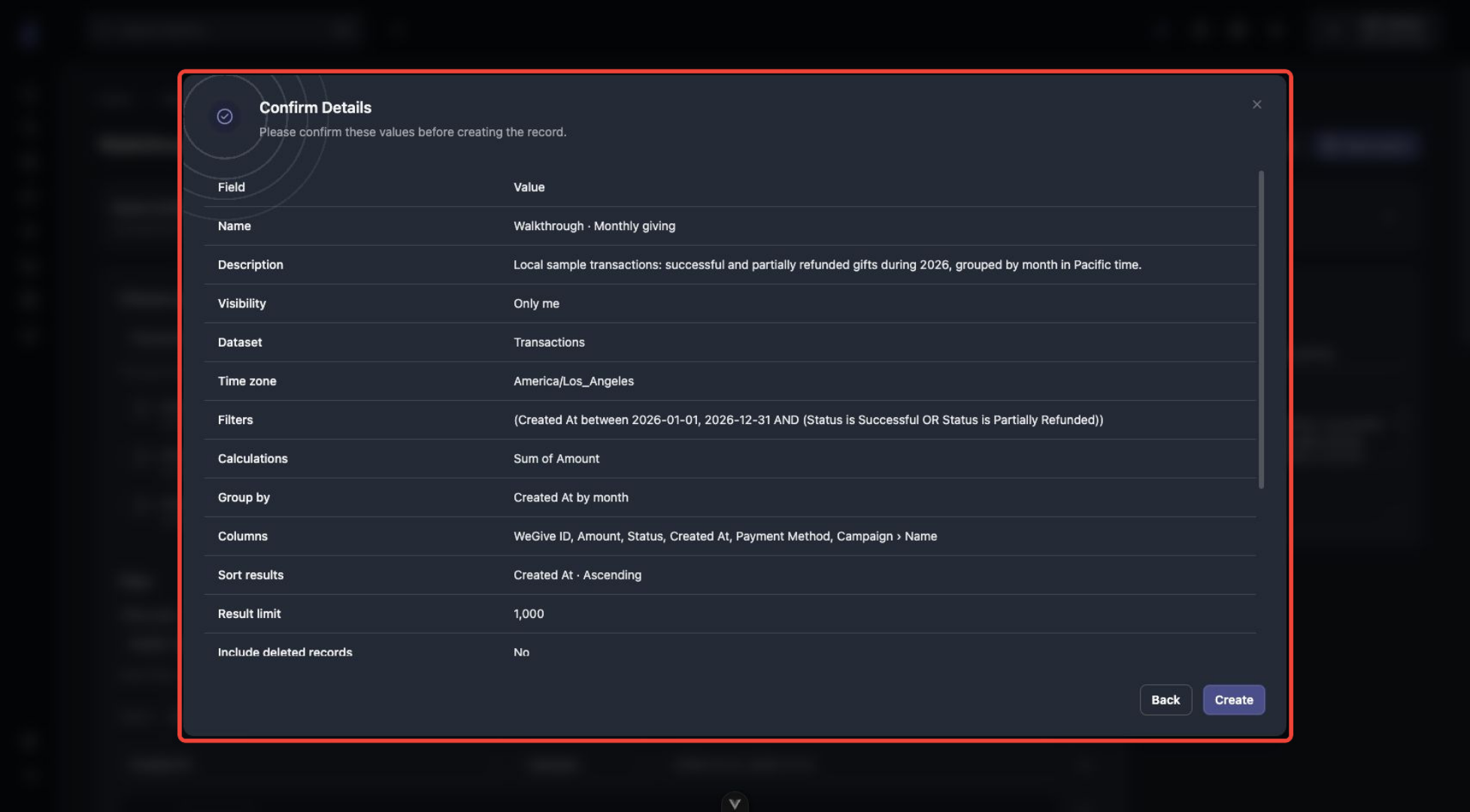 Review your query settings before saving.
View your results
After you run a query, the builder folds away so you can focus on the results. Click the Query builder bar any time to open it again and make changes.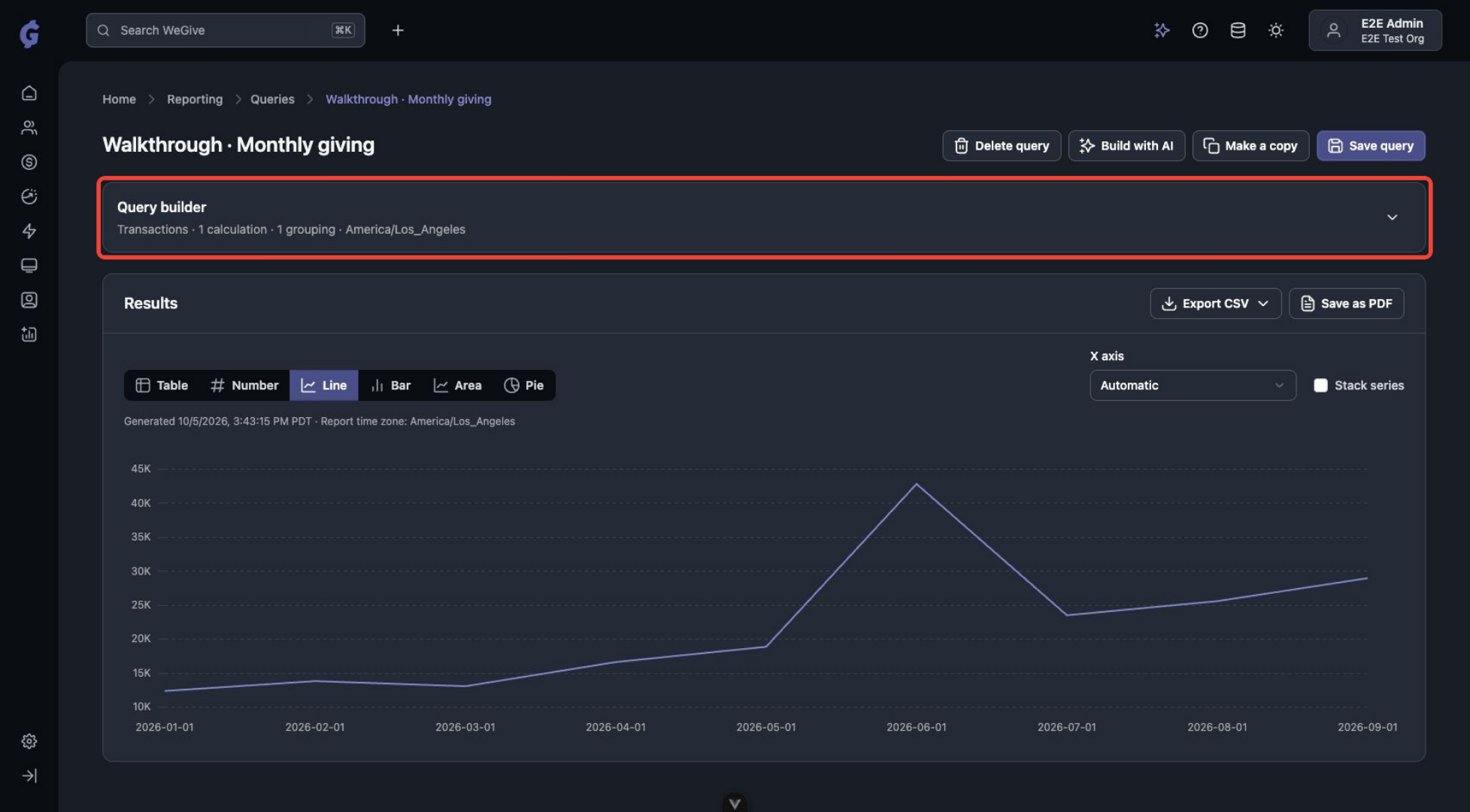 Results appear below the folded query builder.
Choose a visualization
Use the buttons above the results to switch views. Changing the view doesn’t run the query again.
For line, bar and area charts, you can also choose the X axis and turn on Stack series. Click Save query to keep the view you picked.
Each result shows when it was generated and which report time zone it uses.
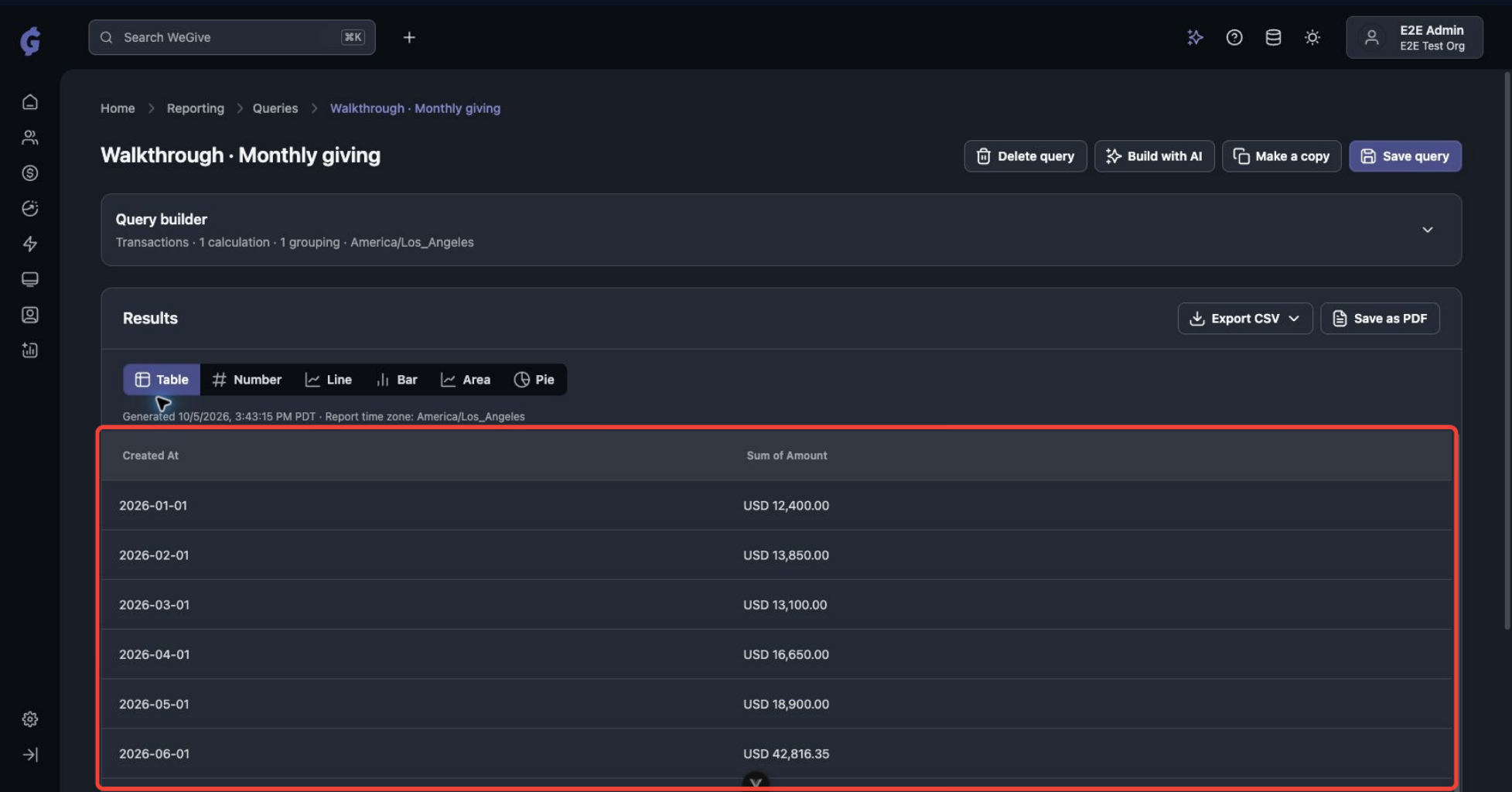 The Table view shows the exact values behind a chart.
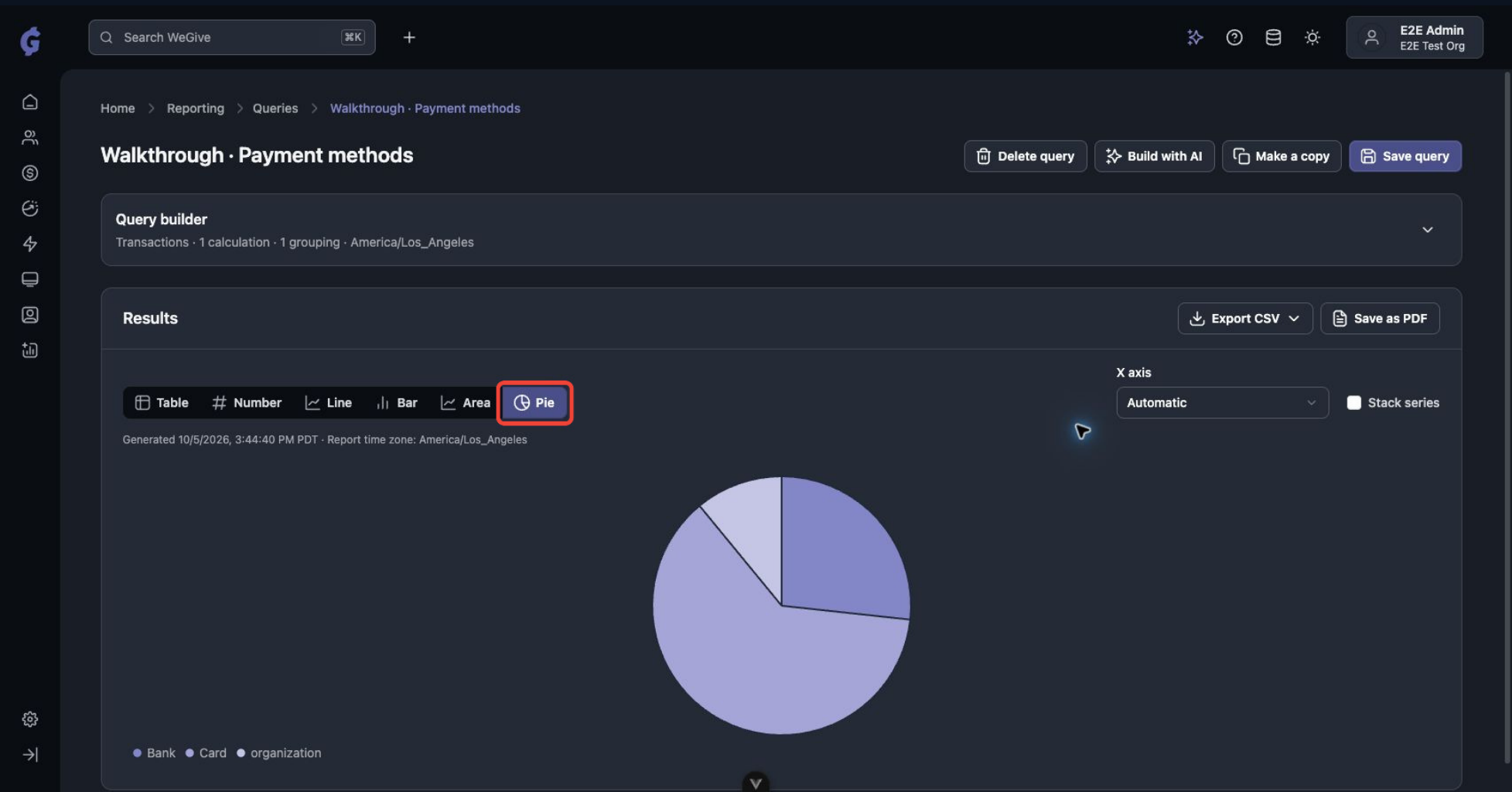 A pie chart showing giving by payment method.
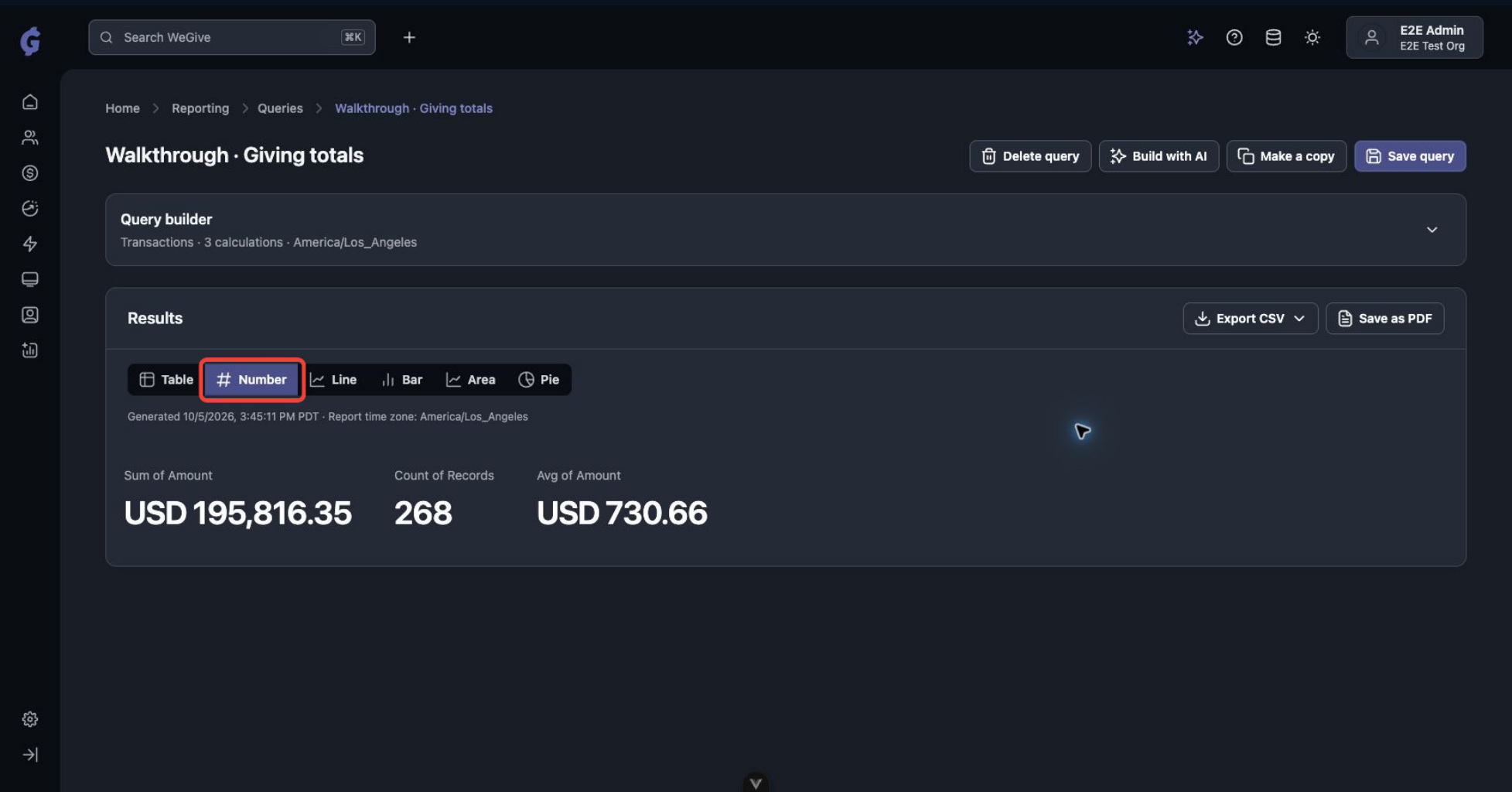 The Number view shows several headline measures together.
Export your results
Download a CSV
Click Export CSV and choose one of two options:- Download results (CSV): Downloads the summarized results you see on screen right away, such as one row per month.
- Export underlying records: Exports every individual record that matches your query, using the columns you chose in Step 5. This export is queued and processed in the background.
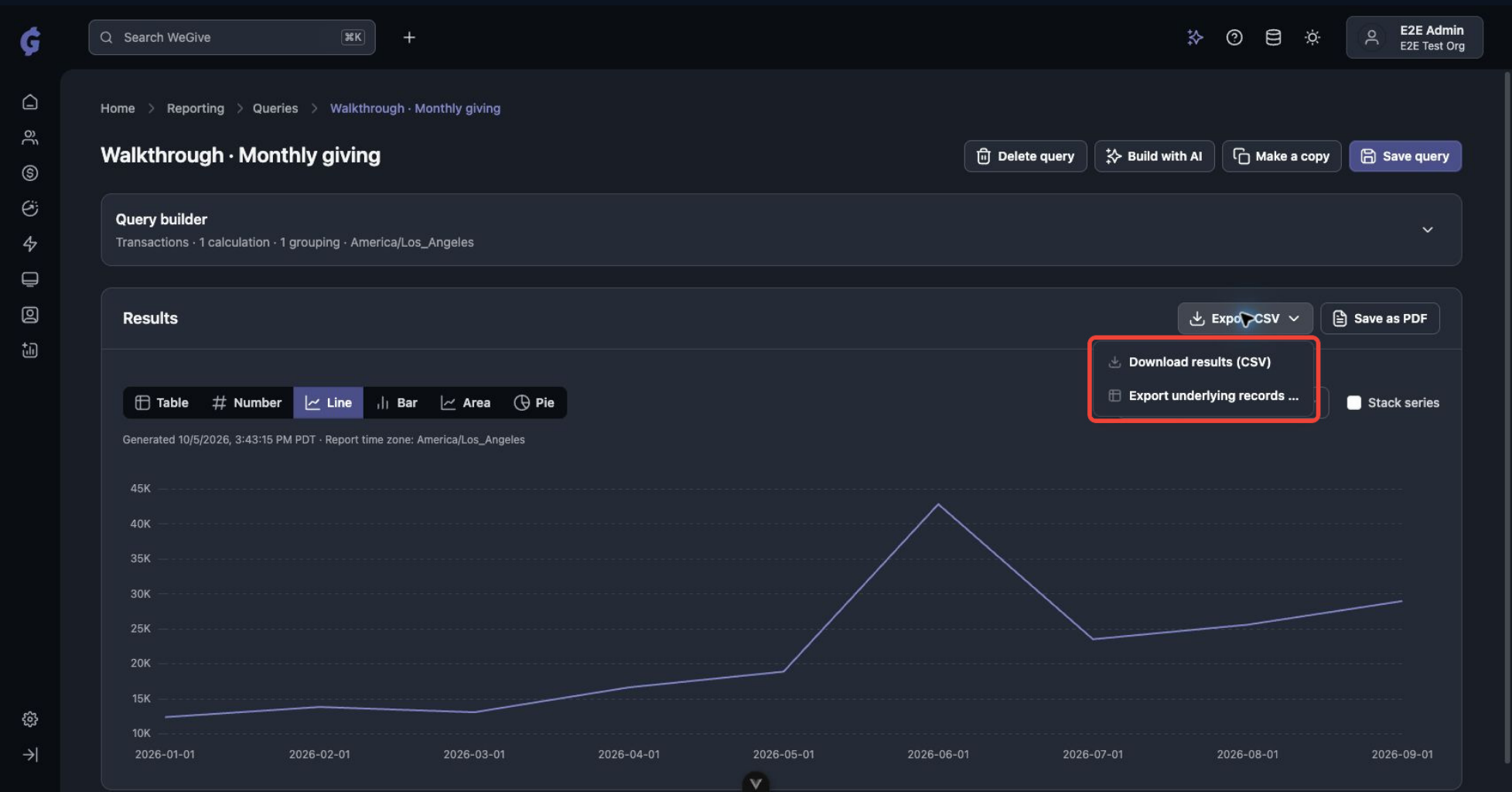 The Export CSV menu.
When you export underlying records, a message confirms the export is queued. Click View exports in that message to find your file in Exports when it’s ready. You stay on your query while the export runs, and your query isn’t saved automatically.
The Export CSV menu.
When you export underlying records, a message confirms the export is queued. Click View exports in that message to find your file in Exports when it’s ready. You stay on your query while the export runs, and your query isn’t saved automatically.
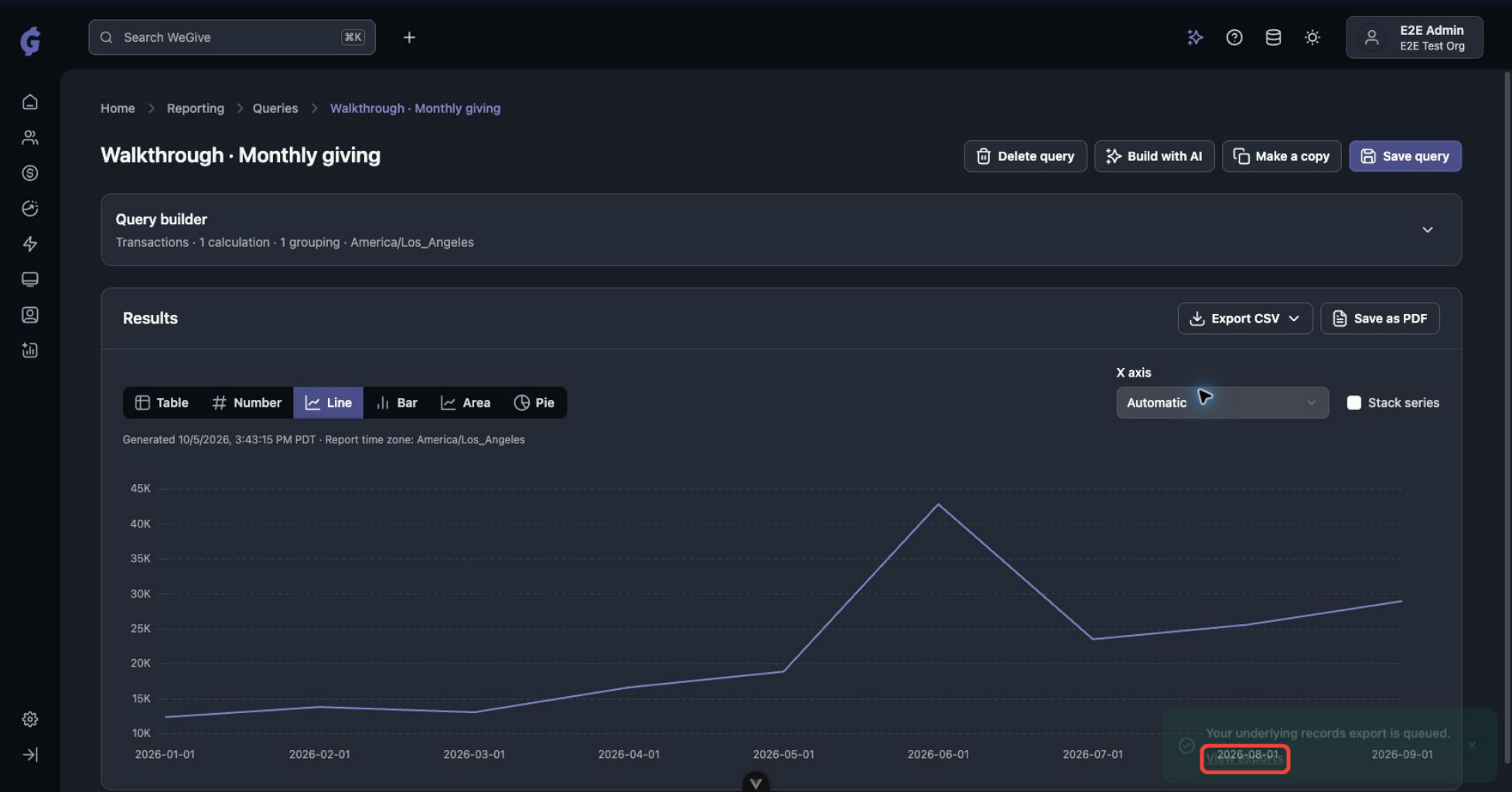 A message confirms that your export is queued.
Save as a PDF
Click Save as PDF to open your browser’s print window, then choose Save as PDF as the destination. This works for single queries and for whole dashboards.Copy, edit or delete a query
At the top of any saved query you’ll find:- Make a copy: Creates a new query with the same filters, columns and settings. This is the easiest way to build a variation, such as the same 2026 filters grouped by payment method instead of month.
- Save query: Saves your changes. A Review Changes window shows each changed setting with its old and new values so you can confirm before saving.
- Delete query: Removes the query.
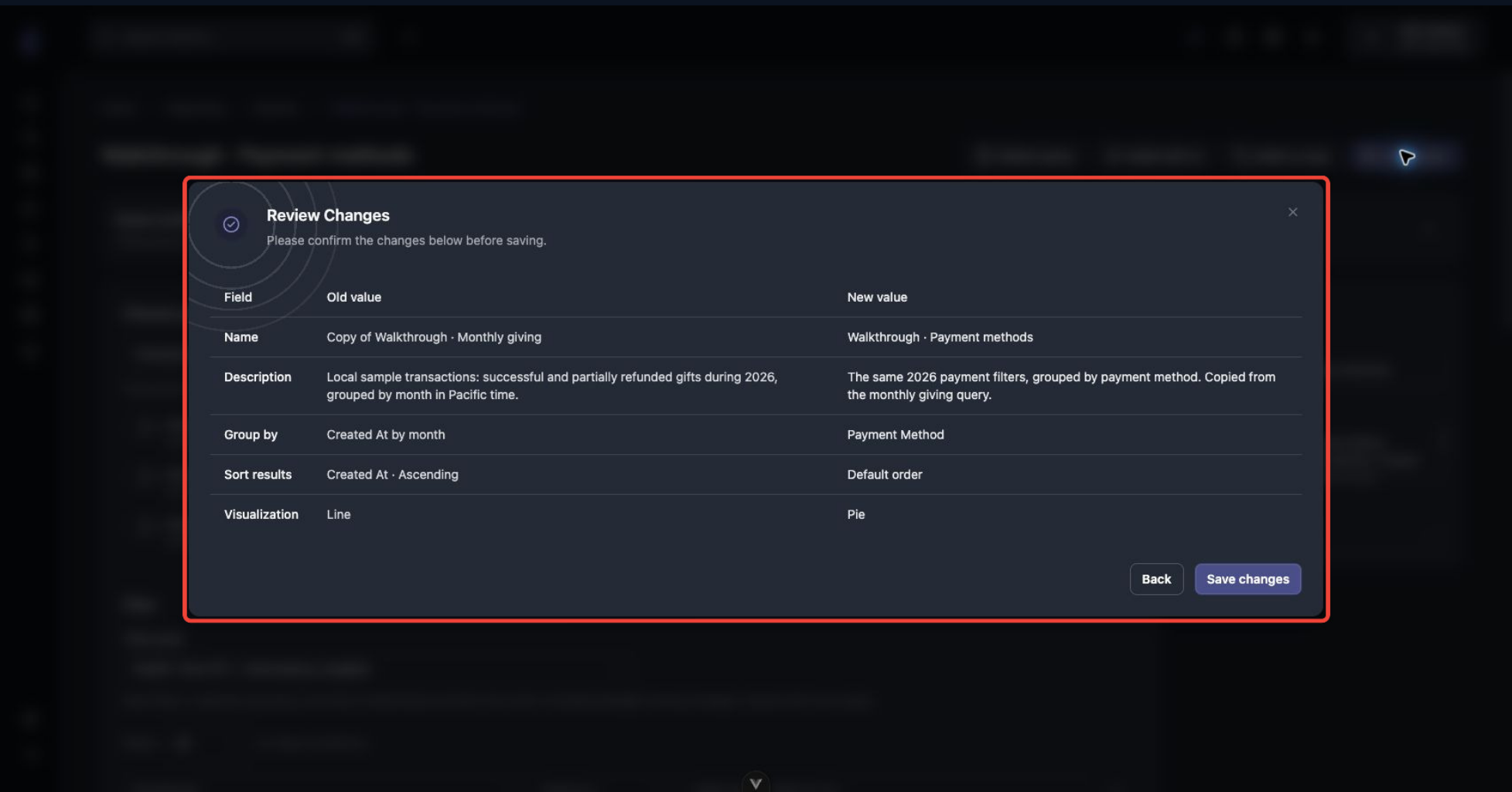 Review Changes shows exactly what you changed before you save.
If you try to leave a query with unsaved changes, WeGive asks whether you want to keep editing or discard them.
Review Changes shows exactly what you changed before you save.
If you try to leave a query with unsaved changes, WeGive asks whether you want to keep editing or discard them.
Build with AI
Not sure how to set up a query? Click Build with AI and describe what you want in plain language, for example: “Show me each individual transaction from 2026, newest first.” The assistant proposes the settings and explains what it will change. Review the proposal and then:- Click Apply to query to fill in the query builder with those settings, or
- Click Dismiss to ignore it.
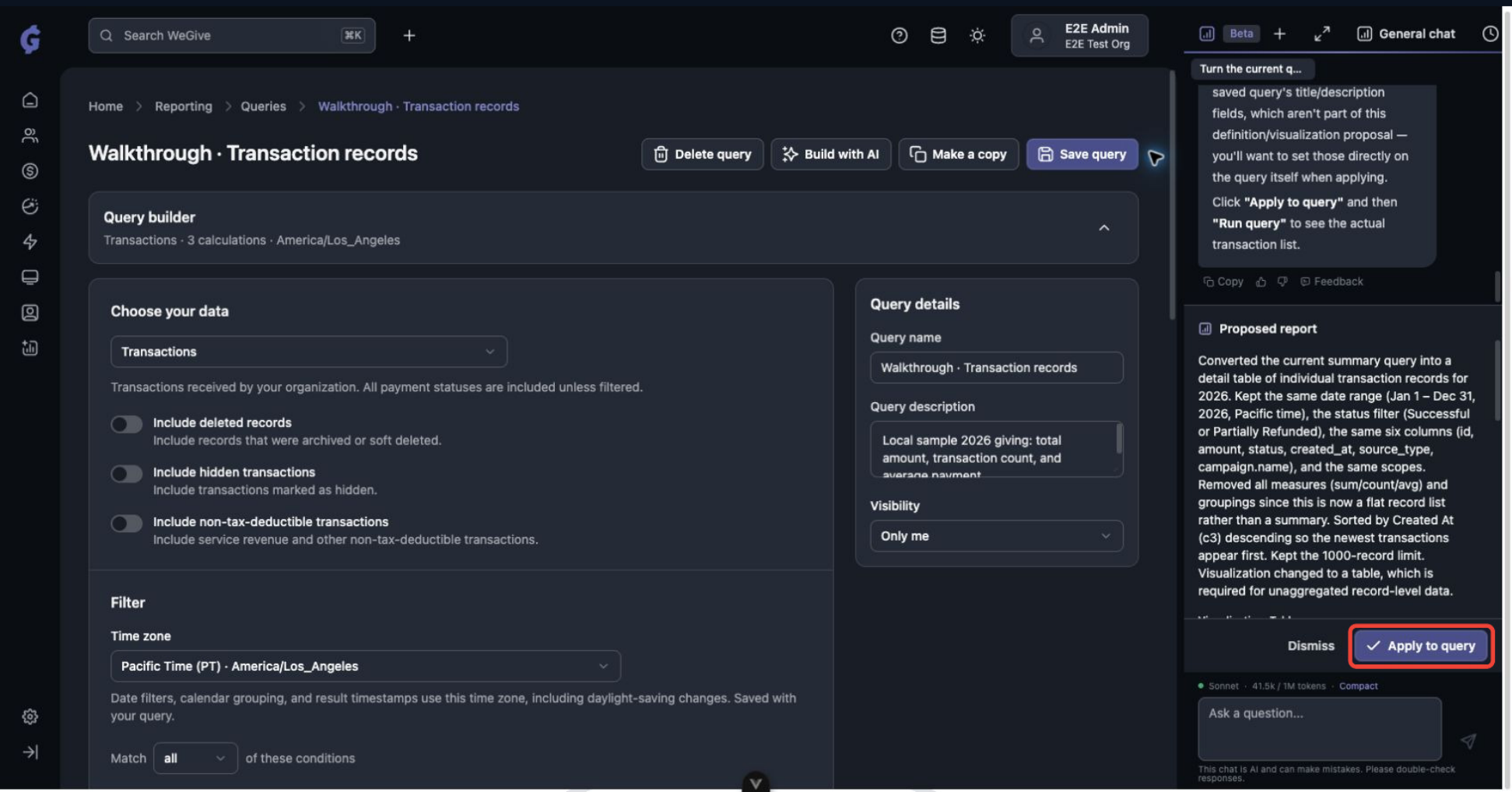 The AI assistant proposes settings. Click Apply to query to use them.
Note: AI can make mistakes. Always check the filters and calculations before you rely on the results.
Browsing individual records
If your query has no calculations in Summarize, the results show a list of individual records instead of totals.- The list loads 50 records at a time. Click Load more to add the next batch.
- The total count isn’t calculated automatically, which keeps large lists fast. Click the count in the bottom left (Showing 50 of many) to calculate the exact total.
- These are live records, so the data can change as you load more.
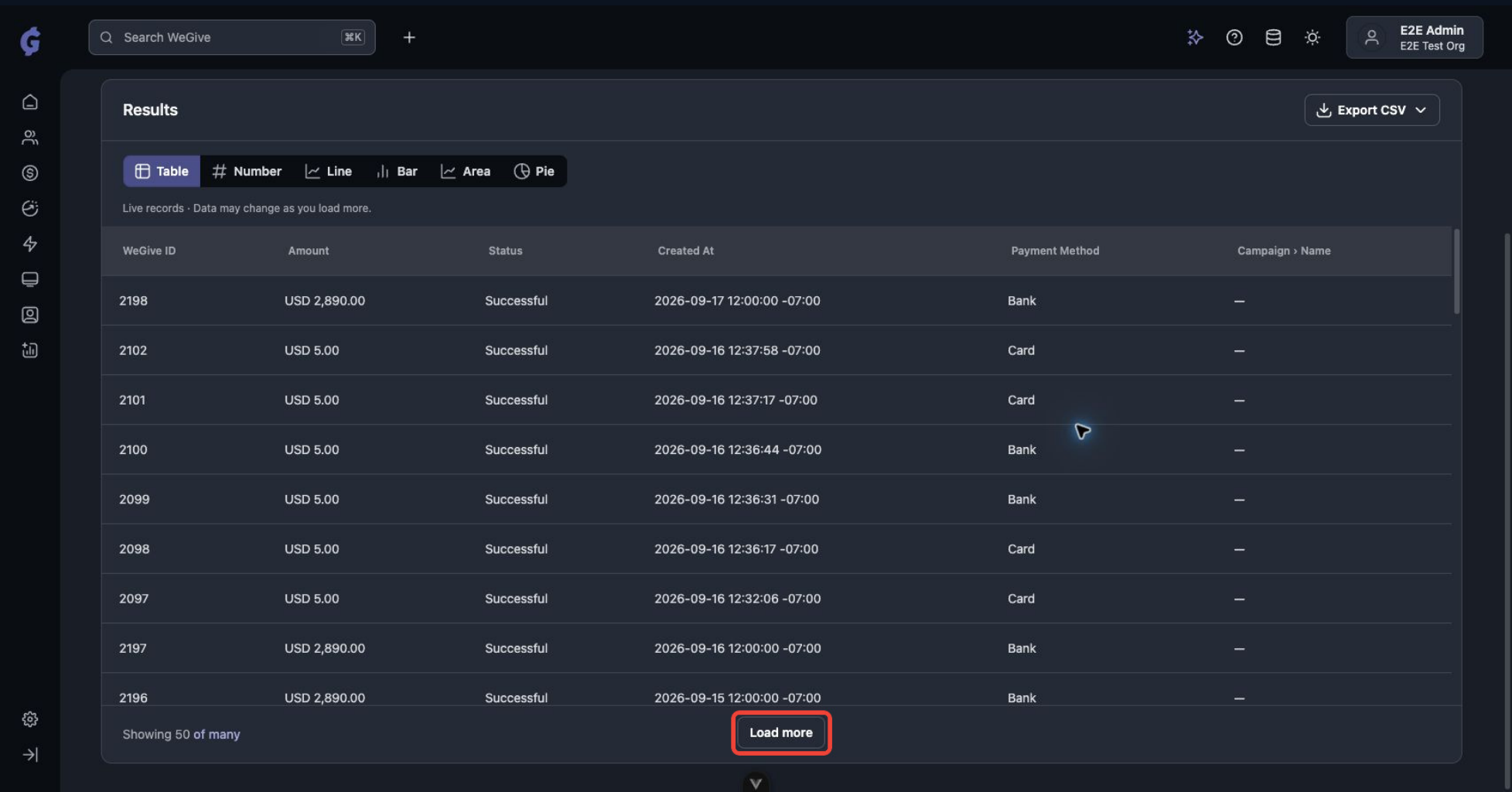 Individual records load 50 at a time. Click Load more for the next batch.
To download all matching records, use Export CSV > Export underlying records.
Individual records load 50 at a time. Click Load more for the next batch.
To download all matching records, use Export CSV > Export underlying records.
Start from a template
Templates give you a set of ready-made queries and a dashboard. They’re the fastest way to get started.- Go to Reporting > Dashboards and start a new dashboard from a template.
- Choose a template:
- Giving overview (6 queries): payment totals, volume and monthly trends for recurring and one-time giving.
- Recurring collections (7 queries): collected recurring payments, paying plans and monthly collection trends.
- Choose a Date range, such as Last 365 days. The range rolls forward each time a query runs.
- Choose a Report time zone.
- Choose the Visibility for dashboard and queries: Only me, or your organization.
- Click Create dashboard.
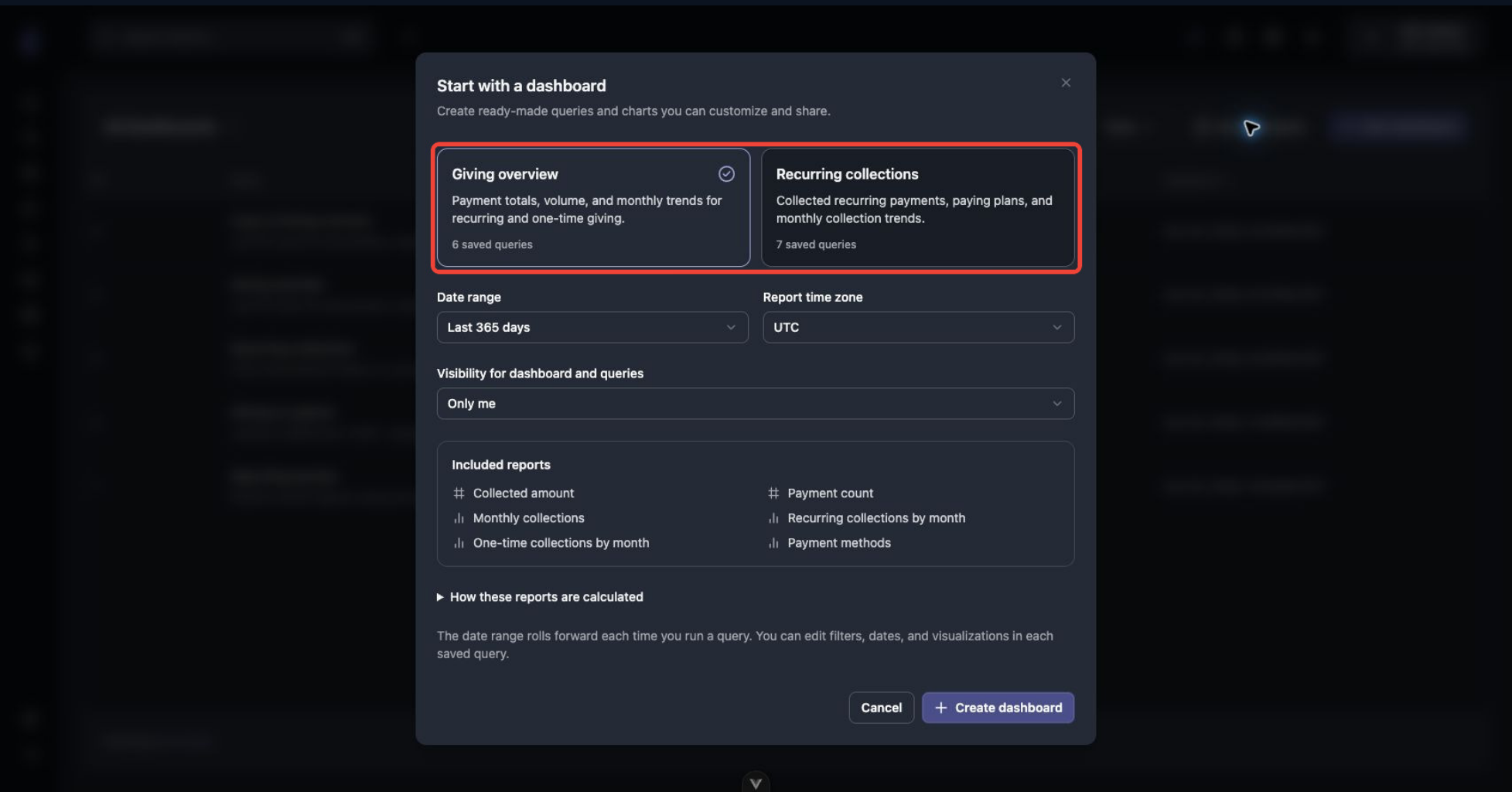 Choose a template, date range, time zone and visibility.
WeGive creates your own copy of every query and the dashboard. You can edit the filters, dates and visualizations in each one, and WeGive won’t change your copies later.
Choose a template, date range, time zone and visibility.
WeGive creates your own copy of every query and the dashboard. You can edit the filters, dates and visualizations in each one, and WeGive won’t change your copies later.
What’s included
Giving overview
Recurring collections
How the template reports are calculated
- They count payments made in the selected date range, in the time zone you chose.
- They include successful and partly refunded payments that are tax-deductible.
- They leave out test, hidden and deleted payments.
- Amounts are what was charged, minus any partial refunds. They can include fees and tips, so they aren’t net revenue and aren’t what was paid out to your bank.
- The first and last months in the range may be incomplete.
Tip: To reconcile against your bank deposits, use Payout Reconciliation. To see revenue KPIs, see Revenue reporting overview.
Build a dashboard
Dashboards show several saved queries together on one page.Create a dashboard
- Go to Reporting > Dashboards and create a new dashboard.
- Enter a Dashboard name and Dashboard description, and choose its Visibility.
- Click Add query, search for the saved queries you want, and click + next to each one.
- Click Save dashboard.
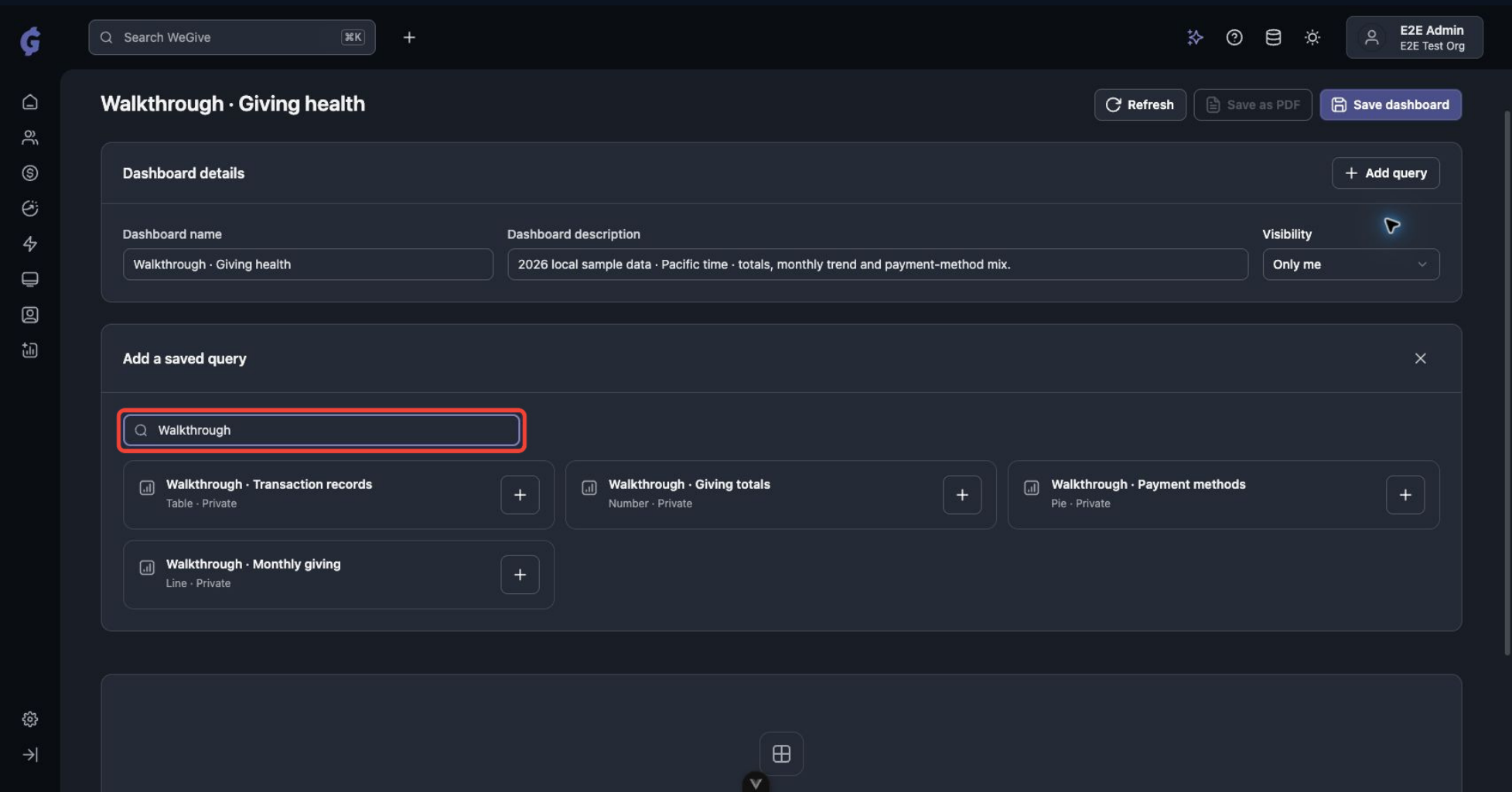 Search your saved queries and click + to add them to the dashboard.
Arrange your cards
While editing a dashboard:- Use the up and down arrows on a card to change its order.
- Set each card to Full width or Half width. Full width works well for headline numbers. Half width lets two charts sit side by side.
- Click X to remove a card from the dashboard. This doesn’t delete the query.
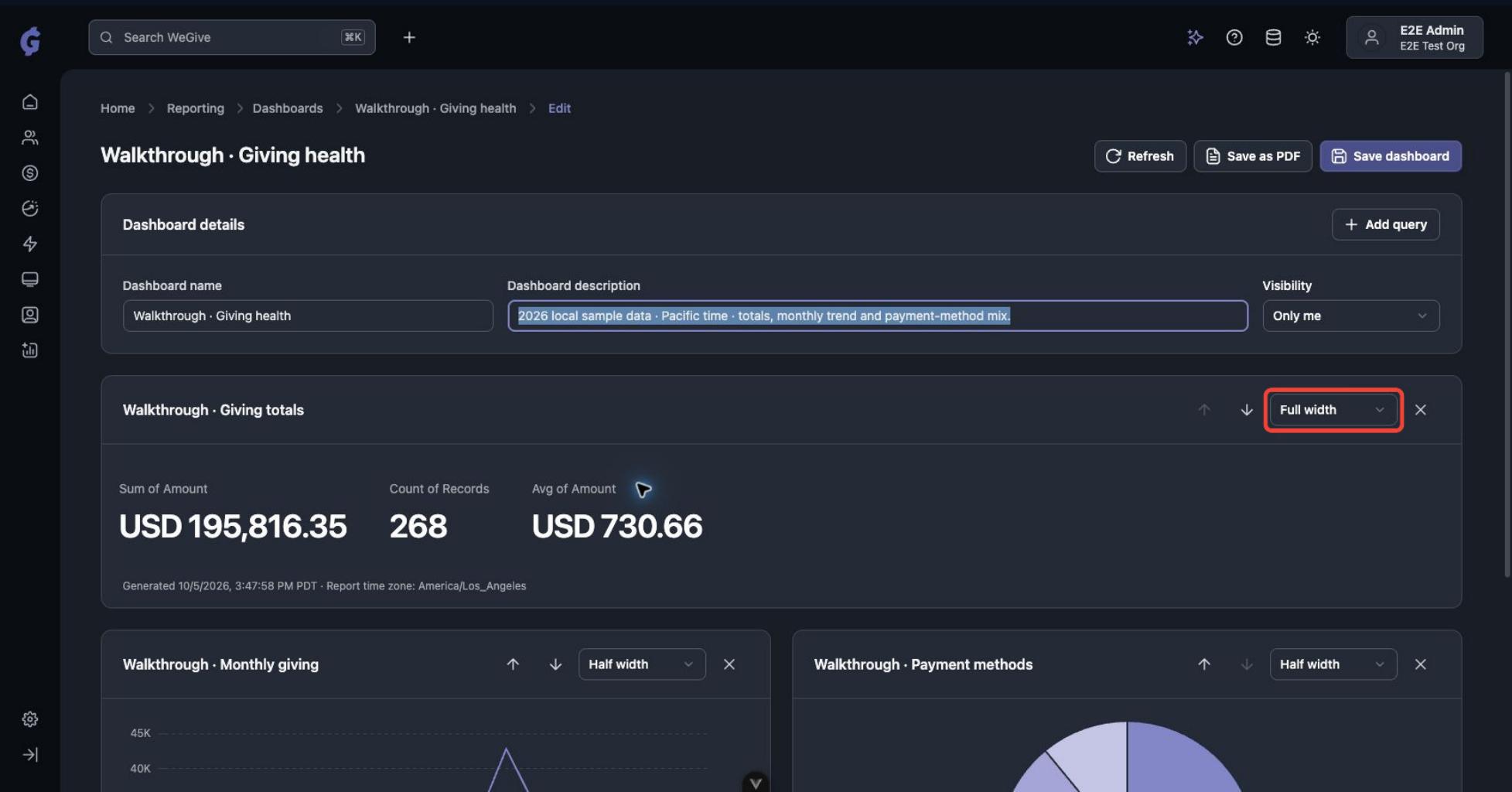 Reorder cards and set each one to full or half width.
If you leave the editor with unsaved changes, a Discard changes? window shows what changed. Click Keep editing to go back, or Discard changes to return to the saved layout.
Reorder cards and set each one to full or half width.
If you leave the editor with unsaved changes, a Discard changes? window shows what changed. Click Keep editing to go back, or Discard changes to return to the saved layout.
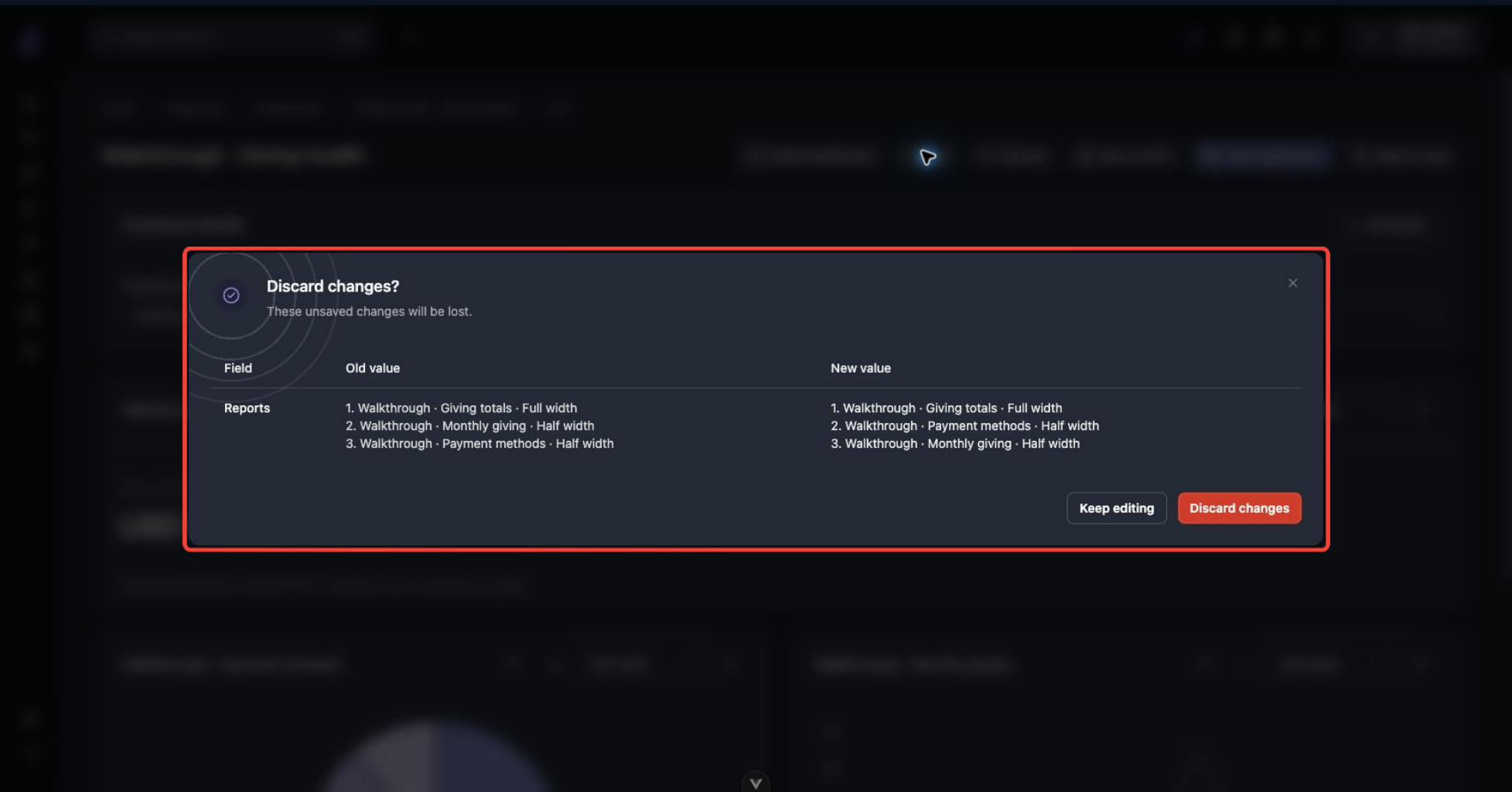 Review unsaved dashboard changes before leaving.
View and share a dashboard
A saved dashboard opens in view mode, with these actions at the top:- Refresh: Runs every query again for the latest numbers.
- Save as PDF: Prints the dashboard, with its title, description, charts and time zones, to a PDF you can share.
- Edit dashboard: Opens the editor.
- Make a copy: Creates a new dashboard that uses the same saved queries. The queries aren’t copied, so changing one updates every dashboard it’s on.
- Delete dashboard: Removes the dashboard. Your saved queries aren’t deleted.
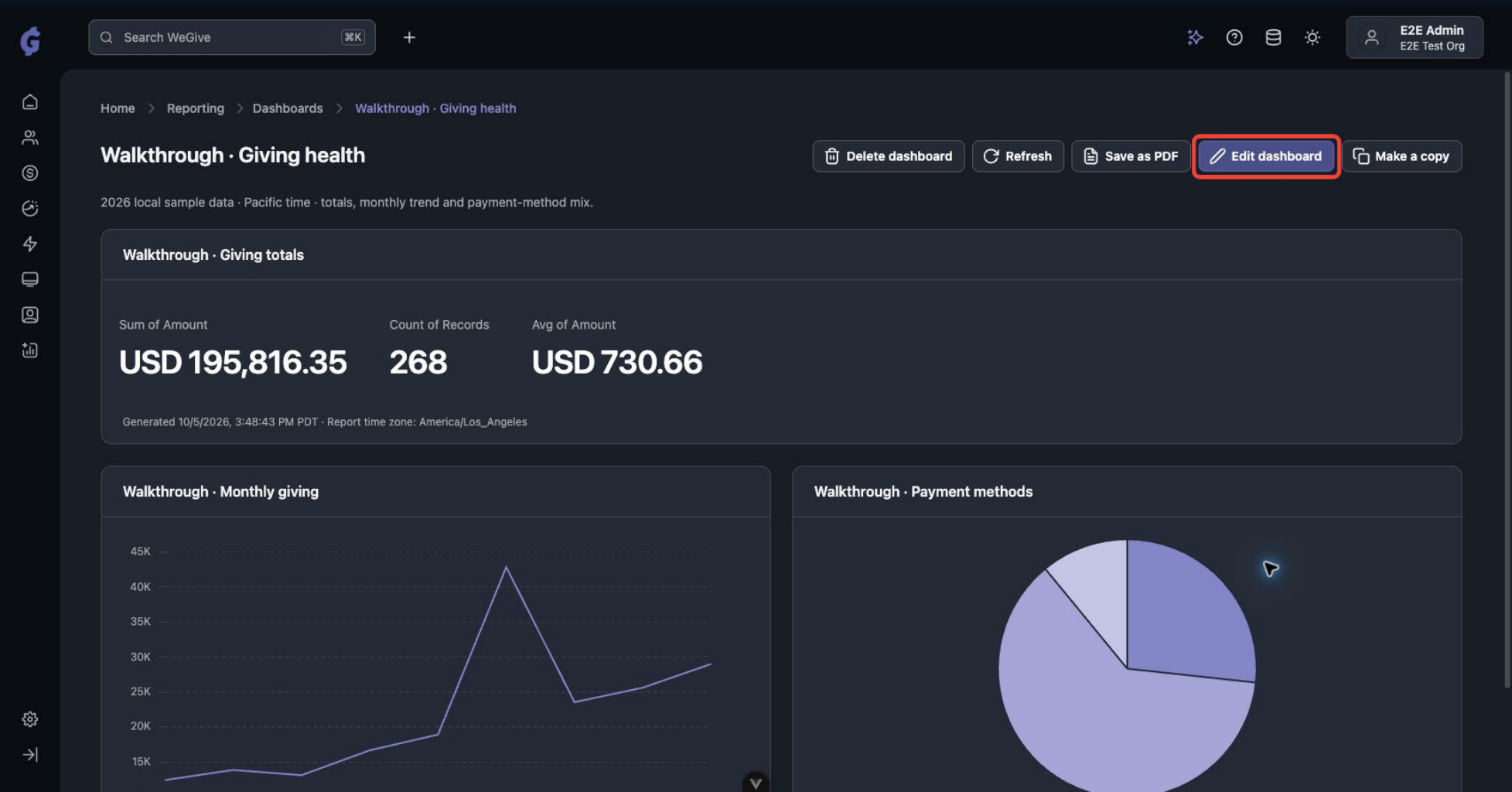 A saved dashboard in view mode.
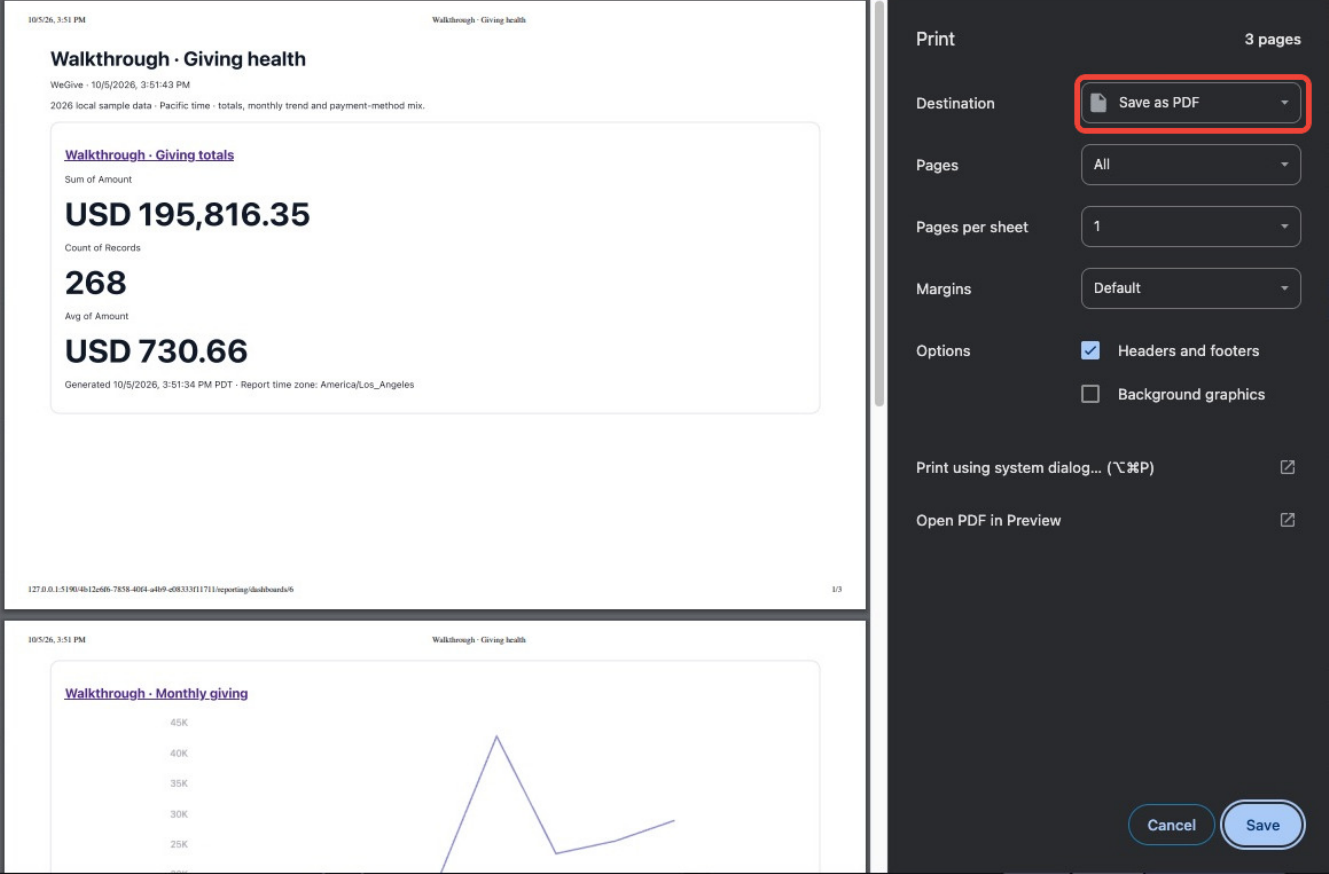 Use Save as PDF to share a dashboard outside WeGive.
Sharing and permissions
- Only me: Only you can see and edit the query or dashboard.
- Organization: Every admin user in your organization can see it.
- Reporting follows your existing WeGive permissions. Sharing a query or dashboard never gives someone access to data they couldn’t already see.
- To share results with someone outside WeGive, such as your board, download a CSV or save a PDF.
What’s not included yet
This is the first version of Reporting. These features aren’t available yet:- Scheduled or emailed reports
- A notification when a query finishes running (return to the query to check)
- Filters that apply to a whole dashboard (filters belong to each query)
- Public or shareable links for people outside your organization
- Automatic dashboard refresh (click Refresh)
- Monthly recurring revenue (MRR) history, donor retention, cohorts and attribution reporting