
Viewing Permissions
The Roles & Permissions viewer shows precisely what each role can do. Open it from Settings → Roles & Permissions. Admins and Developers can view this page.
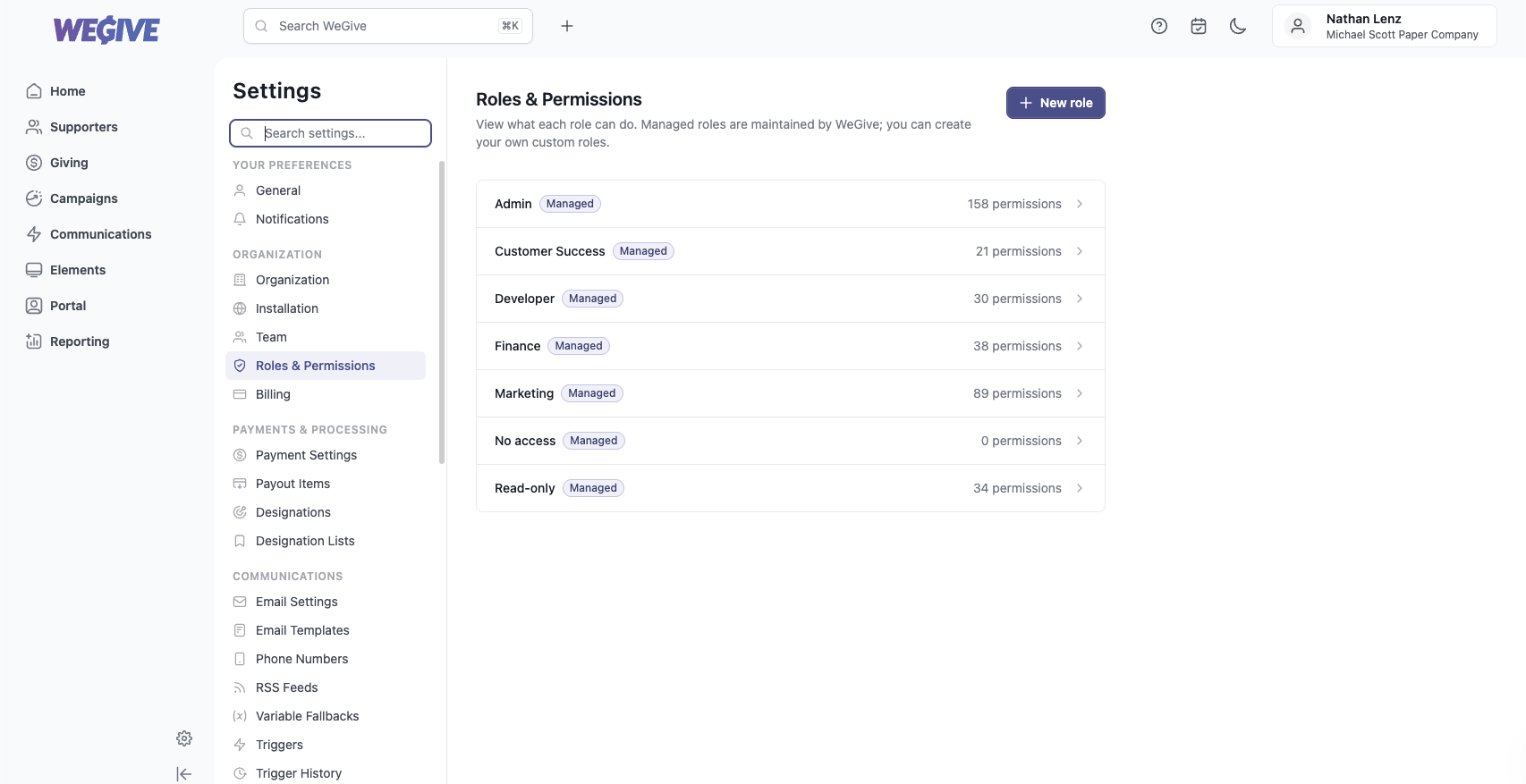
The landing page lists every role in your organization — the six managed roles plus any custom roles you’ve created. Managed roles carry a Managed badge, and each role shows a count of how many permissions it grants — from Admin (all ~158) down to No access (0).
Reading a role’s permission matrix
Select any role to open its detail view. Permissions are grouped by feature (Supporters, Transactions, Campaigns, and so on) and organized under categories like Giving Data, Communications, and Money & Ops.
Each row is a single permission:
- A filled check on the left means the role grants that permission.
- A hollow circle means the role does not grant it.
- The right-hand label (for example
donors.viewortransactions.refund) is the permission’s machine name — useful when referencing it with WeGive support.
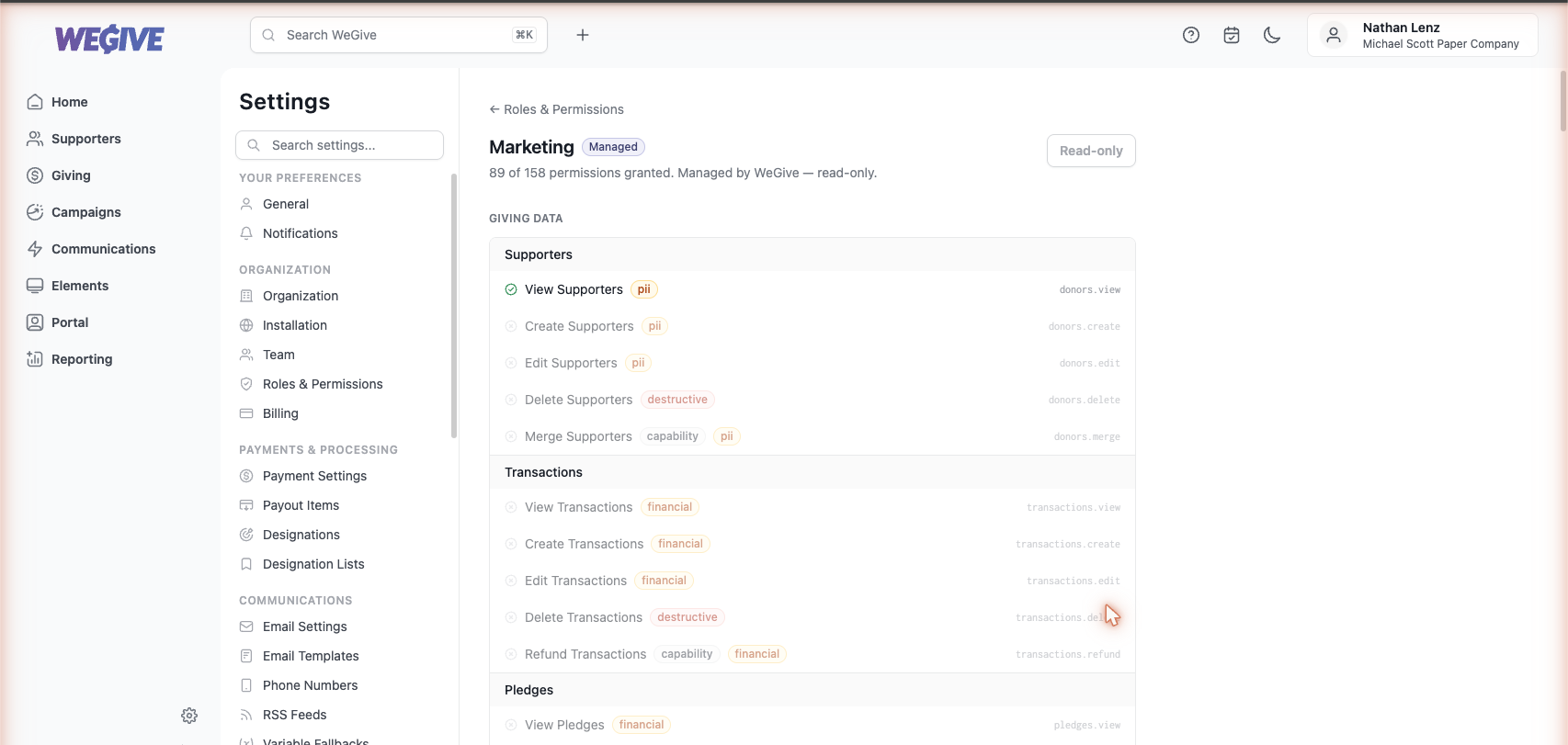
Because managed roles are maintained by WeGive, this view is read-only — you can see exactly what a role grants, but its permission set can’t be changed. The header shows a summary such as “89 of 158 permissions granted. Managed by WeGive — read-only.”
Sensitivity labels
Some permissions carry a sensitivity tag so you can quickly spot the ones that matter most for security and compliance:
| Label | Meaning |
|---|---|
| pii | Touches personally identifiable information about supporters. |
| financial | Involves money, transactions, payouts, or billing. |
| destructive | Permanently deletes records. |
| secrets | Manages credentials, API tokens, or OAuth connections. |
| capability | A special action beyond basic create/edit/delete — for example refund a transaction, send a message, merge supporters, or export data. |
How permissions reach the rest of WeGive
Permissions don’t stop at the page level — they flow through the whole product:
- Search only returns results from areas a member can view.
- The AI assistant can only retrieve and act on data the member already has permission to see.
- Reporting composes its views from the underlying permissions — a Read-only member can open reports but can’t export data.
This means access stays consistent everywhere, without surprising gaps.
Support
Questions about a specific permission or how a role is scoped? Email support@wegive.com.