
Custom Roles
When the six managed roles don’t fit a particular job function, an Admin can create a custom role with exactly the permissions you choose. Custom roles live alongside the managed ones and are assigned to team members the same way.
Managed roles vs. custom roles
| Managed roles | Custom roles | |
|---|---|---|
| Maintained by | WeGive | Your organization |
| Editable | No — read-only | Yes |
| Visible to | Every organization | Only your organization |
| Badge | Managed | — |
WeGive keeps the six managed roles up to date as new features ship. Custom roles are yours to define and maintain.
Create a custom role
-
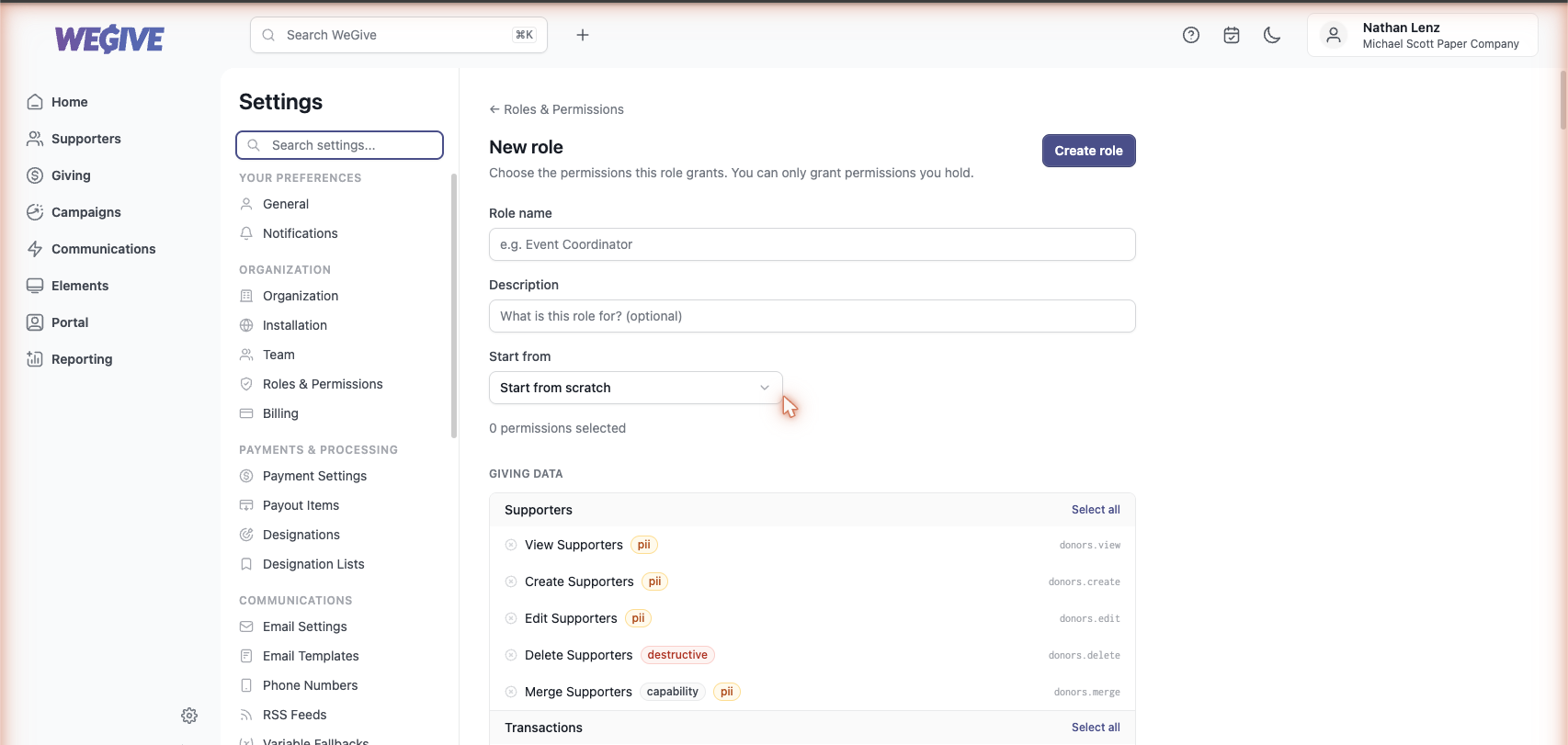
Go to Settings → Roles & Permissions and click New role.
-
Give the role a name (for example, Event Coordinator) and an optional description.
-
Choose a Start from option:
- Start from scratch — begin with no permissions selected.
- An existing role — pre-fill the permission selection from a managed or custom role, then adjust. This is a convenient starting point; it does not link the new role to the original.
-
Select the permissions this role should grant. Permissions are grouped by feature; use Select all on a feature to grant every action for it at once. Each permission shows its sensitivity (
pii,financial,destructive,secrets,capability) so you can see what you’re granting — see Viewing permissions. The running count (“N permissions selected”) updates as you go. -
Click Create role. The role is now available to assign from Settings → Team.
Edit a custom role
Open the role from Settings → Roles & Permissions and click into it. You can change its name, description, and the permissions it grants, then Save changes. Members already assigned to the role pick up the new permission set immediately.
Managed roles can’t be edited — they open in read-only mode.
Delete a custom role
From the custom role’s page, you can delete it. If the role is currently assigned to one or more members, deletion is blocked — you’ll be asked to reassign those members to another role first, so no one is left without a role unexpectedly.
Support
Need help designing a custom role, or want advice on which permissions to include? Email support@wegive.com.